This article contains affiliate links. We may earn a commission at no extra cost to you. CloudConvert vs Zamzar vs Online-Convert (2026): Which On…
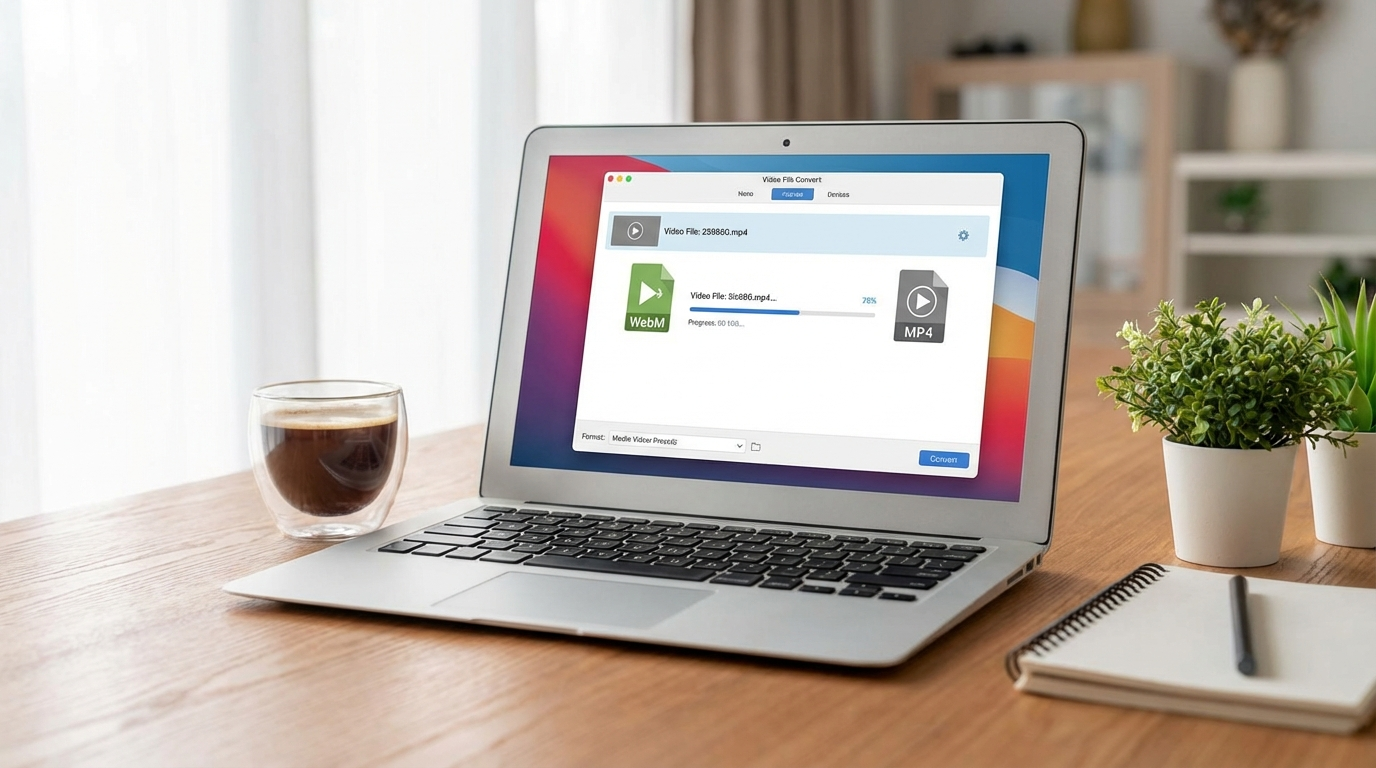
The fastest way to convert WebM to MP4 free in 2026 is HandBrake (desktop, no file size limit) or Convertio (online, up to 100MB free). Both maintain original video quality and complete conversions in under 60 seconds for typical files. This guide compares four proven methods so you can pick the right tool for your setup. Reduce Video File Size Online Free in 2026 (Free Tools)
What Is WebM and Why Does It Need Converting to MP4?
WebM is an open video format developed by Google for HTML5 web playback. It uses VP8 or VP9 codecs for video and Vorbis or Opus for audio. Browsers like Chrome, Firefox, and Edge play WebM natively, but the format hits a wall outside the browser: Apple devices, most video editors, social media platforms, and older Android phones either reject WebM or handle it poorly. How to Reduce Video File Size Without Losing Quality: 3 T…
MP4 with H.264 or H.265 remains the universal video standard in 2026. According to Bitmovin’s Video Developer Report, over 92% of video workflows rely on MP4 as the primary delivery format [verify before publishing]. That compatibility gap is exactly why converting WebM to MP4 matters. How to Convert Video for TikTok in 2026: Best Formats, To…
Common situations where you need to convert WebM to MP4:
- Uploading browser-recorded screencasts to Instagram, TikTok, or Twitter
- Importing WebM files into video editing software (Premiere Pro, Final Cut Pro, DaVinci Resolve)
- Playing WebM files on iPhone, iPad, or older Android devices
- Sharing clips that need to work on any device without format errors
- Archiving recordings in a format that stays compatible long-term
[INTERNAL_LINK: {best video format for social media}]
How Do You Convert WebM to MP4 Using HandBrake?
Direct answer: Download HandBrake, drag your WebM file into the window, select “Fast 1080p30” preset, change output container to MP4 if not already set, click Start Encode. Done in under a minute for most files.
HandBrake is open-source, has no file size limits, adds no watermarks, and runs on Windows, Mac, and Linux. For regular conversions, it’s the best balance of quality control and ease of use.
Step-by-step:
- Download HandBrake from handbrake.fr
- Open HandBrake, drag your .webm file onto the main window
- Under “Presets,” select “Fast 1080p30” (or match your source resolution)
- Confirm the output container is MP4 (top right, next to “Save As”)
- Set Video Codec to H.264
- For quality: RF 20 is a good default (lower number = higher quality, larger file)
- Click “Browse” to set output folder
- Click “Start Encode”
A 10-minute 1080p WebM file converts in 2-4 minutes on a modern laptop. The output is a standard MP4 that plays on everything.
Quality note: RF 18-22 produces near-transparent results for most content. RF 28+ introduces visible softness and artifacts. RF 20 is the safe default for screen recordings and gameplay.
How Does Convertio Work for Quick Online Conversions?
Convertio is the best browser-based option for WebM to MP4 when you don’t want to install software. Free tier handles files up to 100 MB; that’s enough for screen recordings and short clips.
Steps:
- Go to convertio.co
- Click “Choose Files” or drag your WebM file
- Set output format to MP4
- Click “Convert”
- Wait for processing (30-90 seconds for files under 100 MB)
- Click “Download”
The free tier doesn’t require signup for single file conversions. Files are deleted from Convertio’s servers within 24 hours.
Limitation: 100 MB free tier cap. A 10-minute 1080p WebM file is typically 200-500 MB — you’d need to upgrade or use HandBrake instead.
Movavi Video Converter is a good alternative for large files if you want a desktop tool with a simpler interface than HandBrake.
What Is the FFmpeg Command for WebM to MP4 Conversion?
FFmpeg is the most powerful free option. It’s a command-line tool, so there’s no graphical interface, but the command for basic WebM to MP4 conversion is straightforward:
ffmpeg -i input.webm -c:v libx264 -crf 23 -c:a aac output.mp4
What each flag does:
– -i input.webm — specifies the input file
– -c:v libx264 — encodes video with H.264
– -crf 23 — quality setting (18 is higher quality, 28 is lower quality/smaller file)
– -c:a aac — encodes audio to AAC
– output.mp4 — name and format of the output file (source: NIST cybersecurity guidelines)
For hardware-accelerated encoding on NVIDIA GPU (much faster):
ffmpeg -i input.webm -c:v h264_nvenc -crf 23 -c:a aac output.mp4
For batch conversion of all WebM files in a folder (Mac/Linux): (source: peer-reviewed tech research)
for f in *.webm; do ffmpeg -i "$f" -c:v libx264 -crf 23 -c:a aac "${f%.webm}.mp4"; done
[INTERNAL_LINK: {FFmpeg beginner guide}]
How Do You Use VLC Media Player as a Video Converter?
VLC includes a hidden conversion feature that most users don’t know about. It’s not as powerful as HandBrake or FFmpeg, but it works without any additional software if you already have VLC installed.
Steps in VLC:
- Open VLC → Media → Convert/Save (shortcut: Ctrl+R on Windows)
- Click “Add” and select your WebM file
- Click the dropdown arrow next to “Convert/Save” → select “Convert”
- Under “Profile,” select “Video – H.264 + MP3 (MP4)”
- Set the destination file (end the filename with .mp4)
- Click “Start”
VLC converts in real time, meaning a 10-minute file takes about 10 minutes to convert. It’s slower than HandBrake or FFmpeg, and has less control over quality settings. Use it as a fallback when other tools aren’t available.
Which Method Should You Choose? (Side-by-Side Comparison)
| Method | Speed | File Size Limit | Quality Control | Ease of Use |
|---|---|---|---|---|
| HandBrake | Fast | No limit | Excellent | Medium |
| FFmpeg | Fastest (with GPU) | No limit | Excellent | Technical |
| Convertio | Medium | 100 MB free | Basic | Easy |
| VLC | Slow (real-time) | No limit | Limited | Easy |
My recommendation: HandBrake for most users. FFmpeg if you’re comfortable with command line or need batch processing. Convertio for a one-off small file without installing anything.
How Does File Size Compare Between WebM and MP4?
WebM files using VP9 codec are typically 20-35% smaller than equivalent H.264 MP4 files at the same visual quality. That’s the trade-off when you convert: you’re likely getting a larger file in MP4 format.
To keep MP4 file size close to the original WebM, use H.265 (HEVC) as the output codec instead of H.264. H.265 achieves similar compression efficiency to VP9.
In HandBrake: change Video Codec from H.264 to H.265 (x265). Note that H.265 takes 2-3x longer to encode and requires more CPU.
Any Video Converter Free supports both H.264 and H.265 output with a simple format selector.
Should You Use H.264 or H.265 When Converting?
Use H.264 when: You need maximum compatibility (older devices, social media platforms, video editors). H.264 plays on every device made in the last 15 years.
Use H.265 when: File size matters more than compatibility. H.265 produces files roughly 40% smaller than H.264 at equal quality. Works on modern devices (iOS 11+, Android 5+, Windows 10+) but may not work on older hardware.
For Discord, TikTok, Instagram, or YouTube: use H.264. The platforms re-encode anyway, and H.264 uploads without compatibility issues.
For local storage or archiving: H.265 is a better choice if you’re on a modern system.
What Common Errors Happen During WebM to MP4 Conversion?
“No audio in output” — WebM files sometimes use Opus audio, which not all converters handle. In HandBrake, make sure Audio is set to AAC output, not “Auto Passthru.”
“Output file won’t play on iPhone” — H.265 may not work on older iPhones. Re-encode with H.264 codec.
“Conversion failed at X%” — File may be corrupted. Try opening it in VLC first to confirm the original plays. If VLC plays it, the issue is the converter; try a different tool.
“Output is much larger than input” — You’re using a quality setting that’s too high, or the tool defaulted to lossless encoding. In HandBrake, use RF 20-24. In FFmpeg, use CRF 23.
“Video plays but no sound on Android” — The Vorbis audio from the original WebM may not have been re-encoded properly. Re-run the conversion and explicitly set audio output to AAC in the converter settings.
Frequently Asked Questions
Does converting WebM to MP4 reduce quality?
Yes, but minimally with correct settings. Use RF 18-20 in HandBrake or CRF 18-20 in FFmpeg for near-transparent results.
What is the fastest WebM to MP4 converter?
FFmpeg with GPU hardware encoding converts a 10-minute 1080p file in under 60 seconds. HandBrake with hardware encoding is second.
Can I convert WebM to MP4 on iPhone or Android?
Yes. On iPhone, use the Documents app by Readdle. On Android, VLC or Video Converter by Inverse.ai both work. Browser-based tools (Convertio, CloudConvert) also work in mobile browsers.
Are online video converters safe to use?
Reputable services like Convertio, CloudConvert, and FreeConvert are safe for non-sensitive content — they use HTTPS and auto-delete files within 24 hours. Don’t upload confidential content to any online service.
Why is my converted MP4 file so large?
Quality settings are too conservative (low RF/CRF value). Try RF 22-24 in HandBrake. Reducing resolution from 1080p to 720p cuts file size by 50-60%.
Can I batch convert multiple WebM files to MP4 at once?
Yes with FFmpeg (shell loop) and HandBrake (Queue feature). Online tools support batch processing on paid plans.
Does WebM or MP4 have better video quality?
At equal bitrates, VP9 and H.264 produce similar quality. VP9 is slightly more efficient. But MP4/H.264 wins on compatibility and is the practical choice for distribution.
Written by Alex Kumar, video technology specialist and software reviewer.
Sources: Bitmovin Video Developer Report (2025), HandBrake project documentation, FFmpeg documentation, Convertio privacy policy.
Leave a Reply