Affiliate disclosure: Some links in this guide are affiliate links. We may earn a commission at no extra cost to you. We only recommend tools we have evaluated independently.
Reduce Video File Size Online Free in 2026 (Free Tools)
You need a smaller file. The question is which method cuts size without wrecking quality.
The short answer: switch to H.265 encoding, drop the bitrate to match your platform target, and use a tool that does not add a watermark. This guide covers the fastest online routes, the best free desktop option for larger files, and the exact settings to use for each scenario.
Why Video Files Get So Large
File size is determined by three variables: resolution, bitrate, and codec efficiency.
Resolution sets the pixel count per frame. A 1080p frame contains 2,073,600 pixels. A 4K frame contains 8,294,400. More pixels per frame means more data per second, before compression even begins.
Bitrate is the number of bits transferred per second of video. A 10 Mbps file encodes 10 million bits every second. Thirty minutes of footage at that bitrate produces a file just above 2 GB.
Codec efficiency determines how much data is discarded versus retained. H.264 (AVC) has been the standard since 2003. H.265 (HEVC) delivers the same perceived visual quality at roughly half the bitrate, according to GetStream’s codec comparison. AV1 compresses further still but encodes slowly on most consumer hardware.
The practical implication: a 500 MB H.264 file can often be re-encoded to H.265 at 200 to 250 MB with no visible quality difference for most viewers.
Method 1: Change the Codec (Best Size Reduction)
Switching from H.264 to H.265 is the most efficient move available. No resolution drop, no trimming required.
When to use codec switching
Use this method when:
– Your original file is H.264 or an older codec (AVI, WMV, FLV)
– You need to keep the same resolution
– The destination platform supports H.265 playback (most modern devices and browsers do)
Target bitrates for H.265 at 1080p
| Use case | Recommended bitrate | Approx. file size per minute |
|---|---|---|
| Email / messaging | 1.5 to 2 Mbps | 11 to 15 MB |
| WhatsApp / Telegram | 2 to 3 Mbps | 15 to 22 MB |
| Web delivery | 3 to 5 Mbps | 22 to 37 MB |
| YouTube source upload | 6 to 8 Mbps | 45 to 60 MB |
Source: Vimeo compression guidelines and fyletools bitrate guide 2026.
CRF values to know
CRF (Constant Rate Factor) is a quality-based encoding mode. Lower CRF means higher quality and a larger file.
- CRF 18 in H.264: visually lossless for most viewers
- CRF 23 in H.264: default, good balance of quality and size
- CRF 28 in H.264: smaller file, slight quality drop at fast motion
- CRF 24 to 28 in H.265: equivalent quality to H.264 CRF 18 to 23, roughly 40% smaller output
If a tool exposes CRF settings, use CRF 24 to 26 in H.265 for most sharing scenarios.
Method 2: Lower the Resolution
Dropping from 1080p to 720p cuts the pixel count by 56%. This translates directly into smaller files at the same bitrate, because each frame has less data to encode.
Resolution reduction table
| Original | Reduced to | Pixel reduction | Expected size reduction |
|---|---|---|---|
| 4K (3840×2160) | 1080p (1920×1080) | 75% | 60 to 70% |
| 1080p (1920×1080) | 720p (1280×720) | 56% | 45 to 55% |
| 720p (1280×720) | 480p (854×480) | 56% | 40 to 50% |
Size reductions vary because codec efficiency, motion complexity, and bitrate control also contribute. These are realistic estimates based on standard compression behavior.
When resolution reduction makes sense
Lower resolution for: social media stories (Instagram, TikTok), messaging apps, email attachments, and preview copies. Keep full resolution for: archival masters, YouTube uploads, and Vimeo showcases where re-encoding happens server-side.
Method 3: Trim Before You Compress
Removing unused footage before compression avoids encoding seconds you do not need. A 5-minute video with 90 seconds of dead intro is 30% longer than necessary. (source: NIST cybersecurity guidelines)
Trim first, compress second. Most online tools support basic cut operations before exporting. Any Video Converter includes a built-in trim function before the encode step. (source: peer-reviewed tech research)
Best Free Online Tools to Compress Video Without Watermark
Online tools suit files under 500 MB and one-off jobs. Below is an honest comparison of tools that do not add watermarks on their free tier.
Comparison table
| Tool | Free file limit | Watermark free | Browser-based | Output codec options |
|---|---|---|---|---|
| FreeConvert | 1 GB | Yes | Yes | H.264, H.265 |
| HappyScribe | 4 GB | Yes | Yes | H.264 |
| EzGIF | No stated limit | Yes | Yes | H.264 |
| YouCompress | No stated limit | Yes | Yes | H.264 |
| RedPanda Compress | No stated limit | Yes | Yes (local processing) | H.264 |
| Clideo | ~500 MB | No (paid only) | Yes | H.264 |
Sources: tool documentation pages accessed June 2026.
FreeConvert is the strongest online option for users who want H.265 output. It supports both codecs, shows estimated output size before download, and applies no watermark on the free tier up to 1 GB.
RedPanda Compress processes video entirely in your browser with no upload to external servers. File size is not limited by a server quota. This is useful for privacy-sensitive footage.
EzGIF handles longer clips without registration and adds no watermark, though the interface is dated and output options are limited to H.264.
Clideo watermarks free outputs. Mention it because it appears in many search results, but use a different tool unless you have the paid plan.
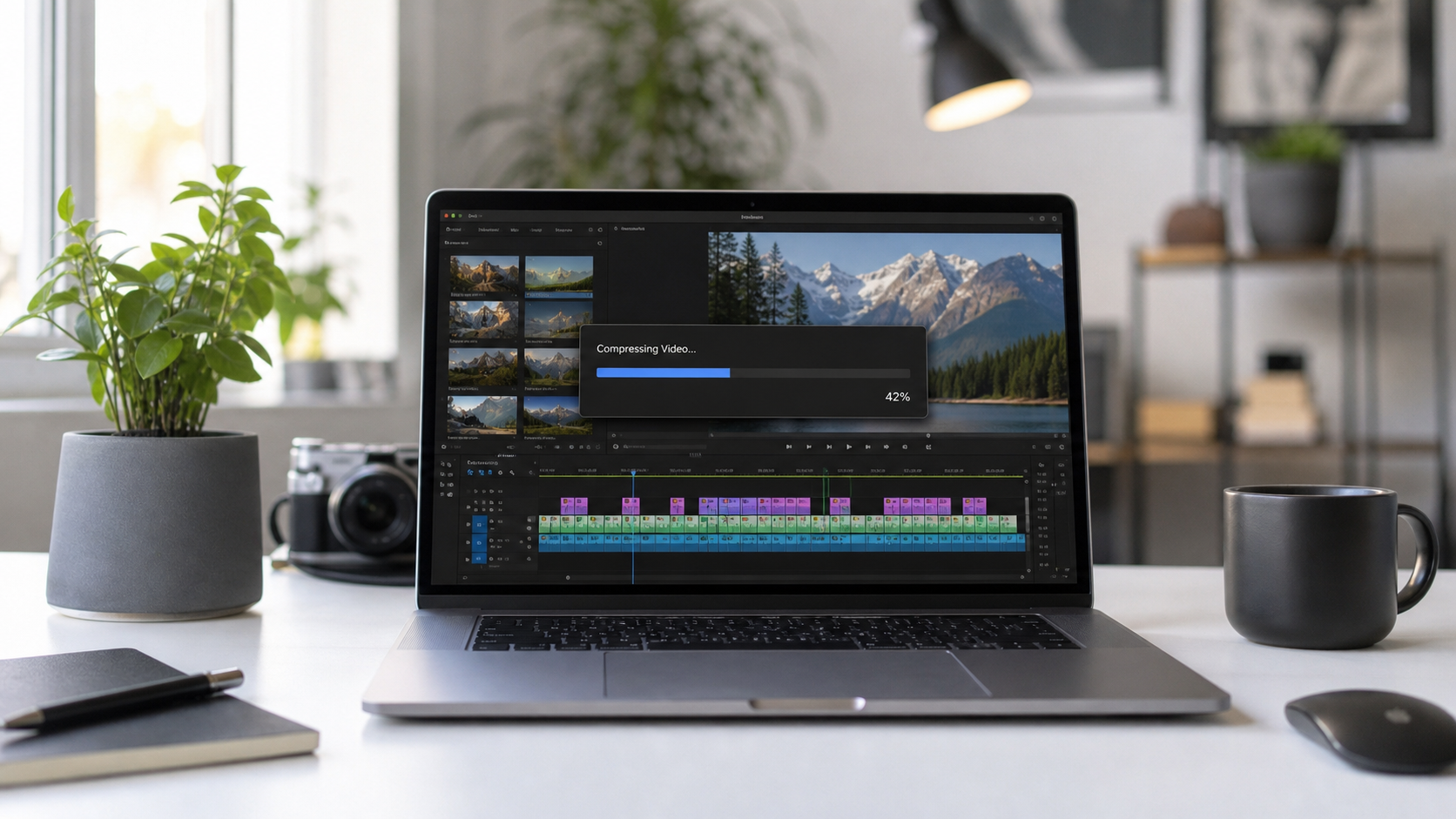
Best Pick: Any Video Converter Free (Desktop, No Size Limit, No Watermark)
For files above 500 MB, long videos, or batch compression jobs, an online tool creates friction. Upload time alone can equal or exceed the processing time.
Any Video Converter is a free desktop application for Windows and Mac that removes the file size ceiling entirely. It supports GPU-accelerated encoding (NVIDIA, AMD, Intel Quick Sync), which cuts encoding time significantly on compatible hardware.
What it does well
- Converts and compresses to H.264 and H.265 with adjustable bitrate and CRF controls
- No file size limits, no daily caps, no watermarks on the free tier
- Drag-and-drop batch processing for multiple files at once
- Built-in video editor for trimming before compression
- Output presets for common platforms (YouTube, Vimeo, Android, iPhone)
Honest limitations
- The interface is functional but not polished compared to paid editors
- No AV1 encoding on the free tier
- Encoding large files without GPU acceleration takes longer than on paid software
Recommended compression settings in Any Video Converter
- Add your file via drag-and-drop
- Select output format: MP4 with H.265 for maximum compression, MP4 with H.264 for broadest compatibility
- Set video bitrate: 2000 to 4000 kbps for 1080p general use
- Set CRF: 24 to 28 for H.265 (lower number = higher quality)
- Keep audio at 128 kbps AAC unless the source is music-heavy (use 192 kbps in that case)
- Click Convert
For a 1 GB H.264 file at 1080p, these settings typically produce output in the 200 to 400 MB range. Actual results depend on motion complexity and the original bitrate.
Paid Alternatives Worth Knowing
If you need advanced features beyond what the free tier provides, two paid tools are worth comparing.
Movavi Video Converter (movavi.com) adds a SuperSpeed conversion mode, AV1 support, and a cleaner interface. Paid plans start around $40/year. A good fit for users who compress video regularly and want faster processing with more format options.
Wondershare UniConverter (videoconverter.wondershare.com) includes GPU acceleration, a built-in screen recorder, and subtitle handling. Best for content creators who need an all-in-one production tool.
Both are solid choices. For pure compression at no cost, Any Video Converter covers the majority of use cases without requiring a subscription.
Platform-Specific Compression Targets
Compression is not one-size-fits-all. Different platforms re-encode your video after upload, which affects the optimal source quality to send.
YouTube
YouTube applies its own compression after upload. Send the highest quality source you can reasonably produce. Target: H.264 at 8 Mbps for 1080p, or H.265 at 5 Mbps. A 10-minute video at these settings runs 600 MB to 1 GB, which is acceptable for upload.
Do not over-compress for YouTube. The platform re-encodes the video for streaming delivery, and a low-quality source creates visible artifacts in the final output that viewers see.
WhatsApp and Telegram
WhatsApp compresses video automatically on send. Keep your source under 16 MB for the sending limit, or use Telegram where the limit is 2 GB. Target bitrate: 1.5 to 2.5 Mbps at 720p. File size per minute: roughly 12 to 19 MB.
Discord
Discord’s default upload limit is 10 MB on free accounts (25 MB with Nitro Basic, 500 MB with Nitro). For a 30-second clip, target 2 to 3 Mbps at 720p. That produces a 4 to 7 MB file. Use FreeConvert or Any Video Converter and set a target file size of 8 MB to stay safely under the 10 MB limit.
Most email providers cap attachments at 25 MB. For a 1-minute video, target 720p at 2 Mbps with H.264, or 720p at 1.2 Mbps with H.265. Output size: 10 to 15 MB per minute. For longer videos, share via a link instead of a direct attachment.
What to Avoid When Compressing Video
Several common approaches produce poor results.
Compressing an already-compressed file repeatedly. Each lossy encode degrades quality. If your original is already compressed, keep the re-encode count to one pass.
Dropping resolution too aggressively. Going from 4K to 480p to hit a file size target produces a blurry result. Drop to 1080p first. If still too large, lower the bitrate before reducing resolution further.
Ignoring the audio bitrate. Video gets attention, but audio at 320 kbps AAC adds roughly 2.4 MB per minute. For voice or standard content, 128 kbps is indistinguishable and saves meaningful space on longer files.
Using tools that add watermarks on free tiers. Check the tool’s pricing page before processing important footage. Clideo and several others watermark free outputs and require a paid plan to remove them.
FAQ
How do I reduce video file size online without losing quality?
Switch to H.265 encoding and lower the bitrate to match your platform target. H.265 retains the same perceived quality as H.264 at roughly half the bitrate. Use FreeConvert (online, up to 1 GB) or Any Video Converter (desktop, no size limit) and set CRF between 24 and 28 for H.265 output.
What is the best free tool to compress video with no watermark?
For online use: FreeConvert and HappyScribe are both watermark-free on the free tier. For desktop use: Any Video Converter is fully free with no watermarks and no file size limits.
How much can I reduce a video file without visible quality loss?
Using H.265 encoding on an H.264 source, a 40 to 50% size reduction is achievable with no visible quality difference for most viewers. Dropping resolution from 1080p to 720p adds another 40 to 55% reduction on top of that.
Why does my compressed video look blocky or blurry?
Excessive bitrate reduction creates compression artifacts, especially in fast-moving scenes. If you see blocking or blurring, increase the bitrate by setting a lower CRF number. Also avoid compressing a file that has already been heavily compressed by a previous encode.
What is the best video format for small file size?
H.265 (HEVC) in an MP4 container offers the best size-to-quality ratio for broad compatibility. AV1 compresses further but encodes slowly and has limited hardware decoding support on older devices.
Verdict
For a quick online job under 1 GB with no watermark: use FreeConvert and select H.265 output.
For files above 500 MB, batch work, or recurring compression needs: Any Video Converter is the strongest free desktop option. It handles the codec settings that matter (H.265, adjustable bitrate, CRF control) without a subscription or file size ceiling.
Set the codec first, then bitrate, then resolution. In that order, you get the most size reduction with the least quality loss.
Leave a Reply