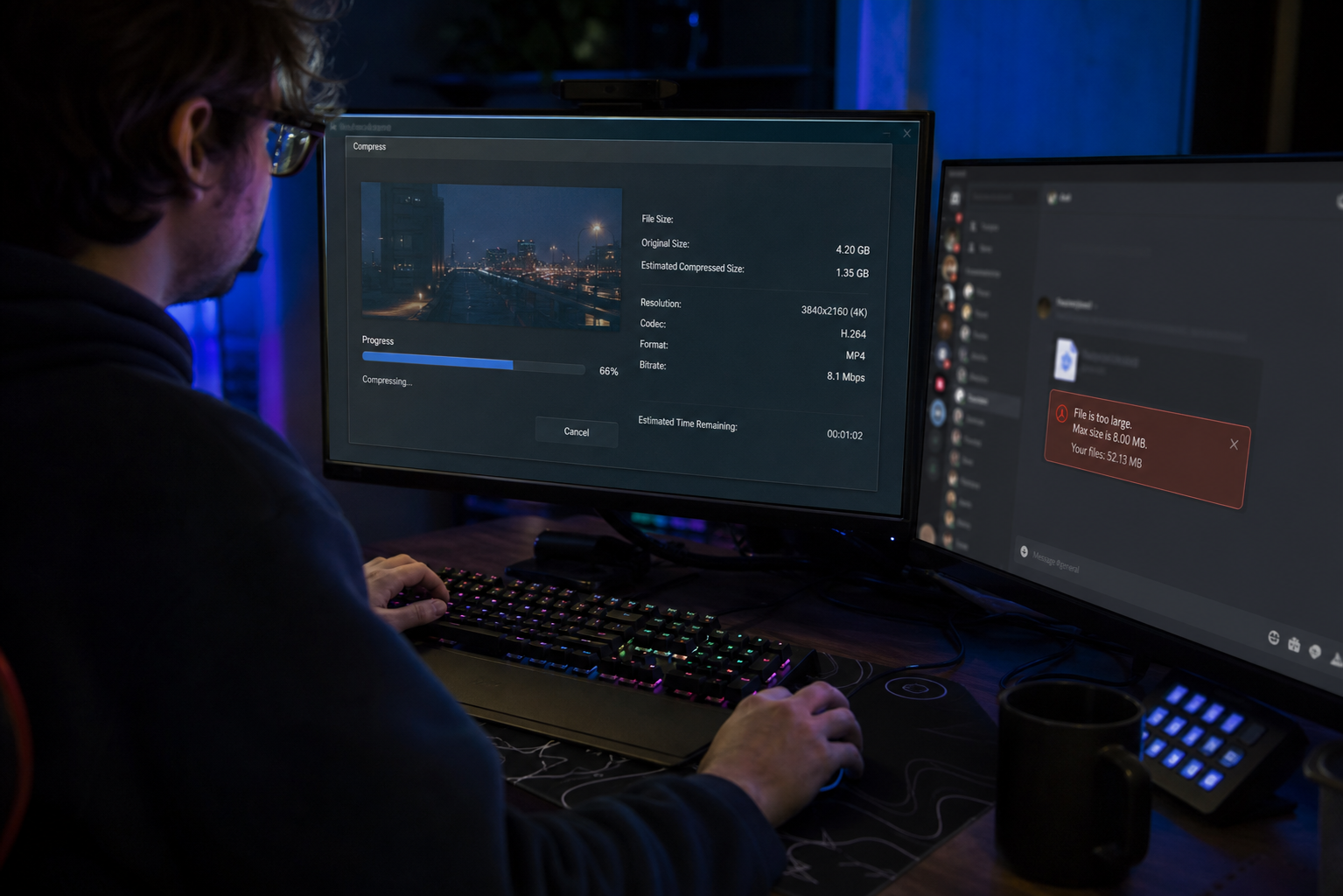
title: “Fix Discord 8MB Video Limit: Best Free Methods That Work (2026)”
slug: “fix-discord-8mb-video-limit-best-free-methods-2026”
domain: “onlinevideoconvert.net”
primary_keyword: “how to compress video under 8MB Discord”
meta_description: “Learn how to compress video under 8MB for Discord using free online tools, HandBrake, FFmpeg, or Wondershare UniConverter. Exact bitrate formulas and step-by-step settings for 2026.”
date: 2026-08-11
word_count: 2710
status: draft
schema:
– Article
– FAQPage
– Author
Affiliate disclosure: This article contains affiliate links. If you purchase through them, we may earn a commission at no extra cost to you. Recommendations are based on technical fit, not commission rates.
Fix Discord 8MB Video Limit: Best Free Methods That Work (2026)
Discord’s free file upload limit is currently 10 MB per file as of 2026. The 8 MB figure you see in older guides and in the widely-used 8mb.video tool is a safe compression target that keeps your file under both the historical and current thresholds. This guide uses 8 MB as the working target throughout.
The short answer: Compress to H.264 MP4, drop resolution to 720p or 480p, lower the bitrate, and keep the clip under 90 seconds. You can do this free in a browser or with desktop software. The sections below cover both paths with specific settings. For general video format conversion tips outside of Discord, our video converter guide has you covered.
What Is Discord’s Actual Video Size Limit in 2026?

Discord’s upload limits changed in 2024 and have stayed at these levels into 2026:
| Account tier | File size limit | Monthly cost |
|---|---|---|
| Free | 10 MB | $0 |
| Nitro Basic | 50 MB | $2.99/month |
| Nitro | 500 MB | $9.99/month |
Source: Discord Nitro pricing page.
Free users lost the old 25 MB limit when Discord reduced it in 2024 to manage storage costs. Today the hard cap is 10 MB, which means any video you share needs to sit below that. Targeting 8 MB gives you a 2 MB buffer for file overhead and encoding variance.
Why 8 MB is the right compression target
A 10-second clip at 1080p H.264 can run 40-80 MB depending on source bitrate. A 60-second gaming highlight at 1080p might hit 200-400 MB. Getting either under 10 MB means significant compression. Targeting 8 MB rather than exactly 10 MB:
- Avoids upload failures from borderline file sizes
- Accounts for encoding output variance (compressors rarely hit exact targets)
- Works on servers with slightly stricter Nitro-boosted limits
Method 1: Free Online Compressors (No Software to Install)
Online tools are the fastest path for occasional compression. Most need no account and work on any OS.
How online Discord compressors work
You upload the video, set a target file size (8 MB), and the tool calculates a bitrate that meets the target. Most re-encode using H.264 at a reduced bitrate and resolution. Quality depends on how good the encoder is and how aggressively it compresses.
Recommended free online options:
- Clideo (clideo.com/compress-video-for-discord): Browser-based, no account required for basic compression, exports MP4.
- VEED.io (veed.io): Clean interface, lets you set target quality or file size. Free tier adds a watermark on some exports.
- Kapwing (kapwing.com): Handles MP4, WebM, WMV, MOV. Free tier works for short clips.
Limitations of online tools
- Upload speed depends on your internet connection. A 500 MB source file takes time.
- Free tiers often cap file size (typically 500 MB to 1 GB input).
- Quality control is limited. The tool picks settings; you cannot override bitrate manually.
- Privacy: your video goes to a third-party server.
For quick, low-stakes clips, these tools work well. For gaming highlights, streams, or anything you want to preserve at decent quality, a desktop tool gives better control.
Method 2: Desktop Compression with Specific Settings

Desktop tools let you set exact bitrates, codecs, and resolutions. This is the most reliable way to hit 8 MB with the best possible quality.
The bitrate math for 8 MB
File size (MB) = (video bitrate kbps + audio bitrate kbps) x duration (seconds) / 8000
For an 8 MB target at 60 seconds total duration:
8,000 KB x 8 / 60 seconds = ~1,067 kbps total
Subtract 128 kbps for audio and you have roughly 939 kbps for video. For a 30-second clip, you get ~2,000 kbps video bitrate, which produces noticeably better results.
Shorter clips = more bitrate = better quality at the same file size. If you have the option, trim the clip before compressing.
Option A: HandBrake (free, open source)
HandBrake is the most widely used free video encoder. Settings for Discord under 8 MB:
- Open HandBrake, drag in your video.
- Preset: select “Fast 720p30” or “Fast 480p30” depending on acceptable quality.
- Video tab: Encoder = H.264 (x264). Set “Avg Bitrate” mode. Enter your calculated bitrate (see math above). Check “2-Pass Encoding” for better quality at low bitrates.
- Audio tab: AAC codec, 128 kbps.
- Output: .mp4 container.
- Click Start.
HandBrake is free with no watermark. It does not have a direct “target file size in MB” input. You calculate the bitrate yourself or use the two-pass approach and check the output size, then re-encode if needed.
Limitation: Two-pass encoding takes twice as long. For long clips at very low bitrates (below 500 kbps video), quality degrades significantly regardless of encoder.
Option B: FFmpeg (free, command-line)
FFmpeg gives the most precise control. For a 30-second clip targeting 8 MB:
ffmpeg -i input.mp4 -b:v 2000k -b:a 128k -vf scale=1280:720 -c:v libx264 -c:a aac output.mp4
Adjust -b:v using the bitrate formula above. FFmpeg is free, open source, and has no watermark. It requires comfort with the command line.
Method 3: Wondershare UniConverter (Best Pick for Regular Use)

For users who compress Discord videos more than occasionally, a dedicated desktop compressor saves time and produces better results than online tools or manual HandBrake settings.
Wondershare UniConverter is the strongest option in this category. Here is why it earns the top spot over free-only tools:
What it does well:
- Target file size input: enter “8 MB” directly and the tool calculates the right bitrate automatically. No math required.
- Batch compression: compress multiple clips at once. Useful if you are exporting an entire gaming session.
- Format support: handles MP4, MOV, MKV, AVI, WebM and more as input. Output defaults to MP4, which is the correct format for Discord.
- Quality preview before export: you can see approximately how the compressed output looks before committing.
- No watermark on exports (paid version).
Honest limitations:
- Wondershare UniConverter is not free. It offers a free trial with limited exports. The paid plan costs around $29.99/year for a single license. If you compress videos rarely, HandBrake or an online tool covers the use case without cost.
- The interface includes upsell prompts for other Wondershare products. They do not interfere with the compression workflow.
When UniConverter is worth it:
If you regularly share gaming clips, screen recordings, or short videos on Discord and you want consistent results without recalculating bitrates each time, UniConverter’s target-size compression workflow pays for itself in time saved. It is also useful if you share videos across multiple platforms (Discord, WhatsApp, email) because it handles different size targets per platform.
How to compress for Discord in UniConverter:
- Launch UniConverter, go to the Compress Video section.
- Add your video file(s).
- Set the target file size to 8 MB.
- Select MP4 as the output format.
- Choose 720p or 480p resolution depending on acceptable quality.
- Click Compress.
The output will be a Discord-ready MP4 under 8 MB.
Method 4: Reduce File Size Before Compressing
Compression alone is not always the right first step. Before you run any tool, consider these steps that reduce file size without touching codec settings:
Trim the clip
Every second removed reduces the file size proportionally. A 90-second clip that contains 60 seconds of relevant content should be trimmed to 60 seconds before compressing. This raises the available bitrate per second, which means better quality at the same target size.
Tools for trimming:
- Windows: Photos app (built-in, no install)
- macOS: QuickTime Player > Edit > Trim (built-in)
- Online: Clideo, Kapwing, VEED (all free for basic trimming)
Lower the resolution
1080p is usually unnecessary for a Discord chat clip. 720p (1280×720) at an appropriate bitrate looks fine on most screens. 480p (854×480) is acceptable for short, action-heavy clips where clarity matters less.
Resolution affects file size significantly:
| Resolution | Approximate bitrate for acceptable quality | Notes |
|---|---|---|
| 1080p | 4,000+ kbps | Too large for 8 MB clips over 15 seconds |
| 720p | 1,500-2,500 kbps | Good for clips up to 40 seconds at 8 MB |
| 480p | 800-1,500 kbps | Acceptable for clips up to 80 seconds at 8 MB |
Strip the audio (if not needed)
If the clip has no relevant audio (a silent gameplay moment, a reaction GIF), removing the audio track saves 128-192 kbps of the total bitrate budget. In HandBrake, set audio to “None.” In FFmpeg: add -an to the command.
Discord-Specific Format Recommendations
Discord plays video inline (in the chat window) on desktop and mobile. The safest format choices:
- Container: MP4 (.mp4)
- Video codec: H.264 (not H.265/HEVC — some older Discord versions and mobile clients handle H.264 more reliably)
- Audio codec: AAC at 128 kbps
- Frame rate: Match source or cap at 30fps. 60fps is playable but uses more bitrate.
- Resolution: 720p is the sweet spot. 1080p at 8 MB over 15 seconds looks worse than 720p because the bitrate is too low for the resolution.
WebM (VP9 codec) is also supported by Discord but less universally compatible across all clients and platforms where users might download and re-watch the clip. MP4 H.264 is the safe default.
What to Do If You Cannot Get Under 8 MB
Some source videos are too long or too high quality to fit in 8 MB without unacceptable degradation. Your options:
- Upgrade to Discord Nitro: 500 MB limit removes the compression constraint entirely. At $9.99/month it is a genuine option if you share videos frequently. [Source: discord.com/nitro]
- Upload to YouTube as unlisted and share the link: Discord embeds YouTube links directly in chat. No file size limit.
- Use Streamable or Imgur: Both host short video clips free and Discord embeds their links. Streamable free tier has limits on video duration and storage.
- Use a Discord bot file hosting service: Tools like file.kiwi host the file externally and post a Discord-embeddable link. Convenient but adds a dependency on a third-party service.
- Cut the clip shorter: The most reliable fix. A 20-second clip will always compress better than a 90-second clip.
Tool Comparison: Which Method Fits Your Situation
| Situation | Best tool | Why |
|---|---|---|
| One-off quick clip, no install | Clideo or Kapwing (online) | Fast, no software required |
| Need exact 8 MB target, occasional use | HandBrake (free) | Precise bitrate control, no cost |
| Regular Discord video sharing, batch clips | Wondershare UniConverter | Target-size input, batch mode, no bitrate math |
| Command-line comfortable | FFmpeg | Most precise, free, no watermark |
| Very long clip that cannot compress to 8 MB | YouTube unlisted link | No file size constraint |
For most readers who compress Discord videos more than a few times per month, Wondershare UniConverter is the most practical choice. It removes the bitrate calculation step and handles batch compression cleanly.
Alternatives worth considering:
- Any Video Converter (any-video-converter.com): Free desktop tool with compression features. Less polished than UniConverter but functional for basic Discord compression.
- Movavi Video Converter (movavi.com): Paid tool with a good interface. File size targeting is available. Comparable to UniConverter on core compression quality.
Frequently Asked Questions
What is Discord’s video size limit for free accounts in 2026?
Discord’s free tier allows file uploads up to 10 MB as of 2026. The limit was reduced from 25 MB in 2024. Targeting 8 MB gives you a buffer against encoding variance.
Why does my video still fail to upload even after compressing to 8 MB?
Discord checks the final file size at upload. If your compressor reported 8.0 MB but the actual output is 8.1 MB or above 10 MB, the upload fails. Re-compress targeting 7.5 MB to be safe, or check the file size in your file explorer before uploading.
Does Discord support H.265 (HEVC) video?
Discord plays H.265 on some clients but H.264 is more reliably compatible across desktop, mobile, and the web app. Use H.264 unless you have a specific reason to use H.265.
Can I send videos larger than 8 MB on Discord without Nitro?
Yes. Upload the video to YouTube as unlisted, Streamable, or Imgur and paste the link into Discord. Discord embeds these links and plays them inline. No file size limit applies to linked content.
Does Wondershare UniConverter add a watermark to compressed videos?
The free trial version adds a watermark. The paid version does not. HandBrake and FFmpeg are free options with no watermark at any tier.
What is the maximum video length for an 8 MB Discord upload?
It depends on resolution and quality settings. At 720p H.264 with 128 kbps audio, an 8 MB limit allows roughly 40-50 seconds of video at acceptable quality. At 480p the limit extends to around 70-90 seconds. Very short clips (under 15 seconds) can stay at 720p or 1080p with good results.
Summary: The Fastest Path to Under 8 MB
- Trim your clip to the minimum length needed.
- Target 720p resolution, not 1080p.
- Calculate your bitrate: (8000 x 8 / duration in seconds) – 128 kbps for audio.
- Use HandBrake (free) or Wondershare UniConverter (paid, recommended for regular use) to encode at that bitrate in H.264 MP4.
- Check the output file size before uploading.
For one-off clips: any free online tool works. For regular Discord video sharing with minimal friction: Wondershare UniConverter gives consistent results without manual bitrate calculation.
Internal reading:
– How to compress video for Discord free
– How to reduce video file size without losing quality (2026)
Leave a Reply