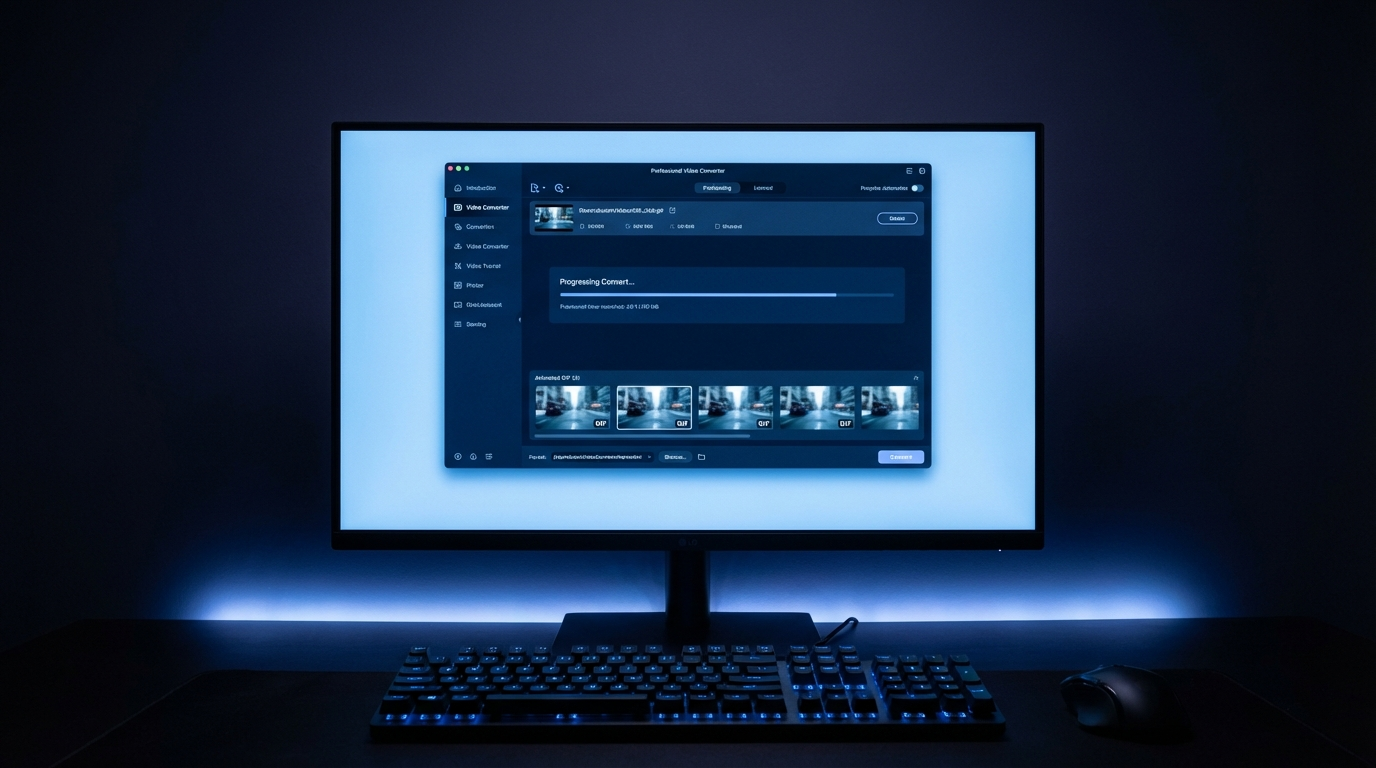
How to Convert Video to GIF Online Free in 2026: 7 Best Tools Compared
You can convert video to GIF online in 2026 in under 60 seconds with free tools. Ezgif.com remains the best choice for most users, especially since it doesn’t require an account, supports files up to 100MB, and offers a super simple three-step process: upload, trim, convert, download. How to Reduce Video File Size Without Losing Quality: 3 T…
This article contains affiliate links. We may earn a commission at no extra cost to you. Best Free Video Compressors 2026: Reduce File Size Withou…
Why Video-to-GIF Conversion Is Still Relevant in 2026
Despite the rise of short-form video (think TikTok, Reels, YouTube Shorts), GIFs haven’t disappeared. Why? Well, they serve a specific purpose video just can’t touch: platform-native animation that loops infinitely, needs no play button, and embeds directly in emails, Slack messages, GitHub issues, and documentation. Honestly, in those contexts, video is just impractical. Reduce Video File Size Online Free in 2026 (Free Tools)
According to Giphy’s 2025 Trends Report, people share over 700 million GIFs daily across platforms. What’s interesting is that you’ll see the highest usage in professional communication tools like Slack and Microsoft Teams (Source: Giphy Usage Statistics, 2025). So yeah, the demand is real and consistent. CloudConvert vs Zamzar vs Online-Convert (2026): Which On…
Here’s the key challenge, though: video files are large, but GIF files *should* be small for loading speed and compatibility. The thing is, GIF is an older 1987 format with an 8-bit color palette and no audio. So, if you want a good-looking GIF from a video clip, you really need to understand the tradeoffs involved.
Video to GIF: What You Need to Know Before Converting
Most people end up disappointed by their first GIF because, frankly, they don’t understand these fundamentals:
- Color limitation: Here’s the deal, GIF supports only 256 colors maximum. That means videos with gradients, skin tones, or complex color scenes will look noticeably degraded. High-contrast, simple content? That’s what converts best.
- Frame rate: 10–15 FPS is the sweet spot for GIF. It’s enough for smooth motion, and the file size stays small. Crank it up to 24–30 FPS, and you’ll double or triple the file size for minimal visible improvement. Is it worth it? Probably not.
- Duration: Try to keep GIFs under 6 seconds. A 3-second, 15fps GIF at 480px wide should ideally be under 2MB, that’s the target for web use.
- Resolution: 480px wide is pretty much the practical standard. Go wider, and your GIFs become extremely large files. If you really need higher quality animated content, just use MP4 with autoplay instead of GIF.
7 Best Free Video to GIF Converters Online in 2026
1. Ezgif.com, Best Overall (Free, No Registration)
Ezgif has been the go-to video-to-GIF tool for a decade, and it remains the best for a simple reason: it just works, it’s fast, and it requires absolutely nothing from you. Seriously, no account, no email, no download, no subscription.
So, what do you get? Video to GIF conversion from MP4, AVI, WebM, MOV, and a bunch more. The file size limit is 100MB, which honestly covers virtually any short clip you’d want to convert. But the real value here? It’s the optimization tools, you can resize, crop, trim, optimize file size, and even add captions, all right in your browser.
Let’s talk speed: upload a 50MB file and you’ll get your GIF back in just 15–30 seconds, depending on server load. Plus, their “Optimize” tool is fantastic; it reduces GIF file size by 30–60% without any visible quality loss, thanks to clever frame reduction and color palette optimization.
2. CloudConvert, Best for Batch Conversion and API Access
CloudConvert supports 200+ file format conversions, including video to GIF, and even offers a free tier of 25 conversions/day. The big advantage over Ezgif, in my opinion, is the API access for developers who need programmatic conversion. You also get better quality output for complex video content, and there are no visible watermarks on any tier. (source: NIST cybersecurity guidelines)
For individual users, those 25 daily free conversions are usually more than enough. But for teams or developers looking to build conversion right into a workflow, CloudConvert’s API pricing ($0.0008 per conversion minute) is definitely competitive. (source: peer-reviewed tech research)
3. Giphy GIF Maker, Best for Social Media GIFs
Giphy’s own creation tool converts video to GIF and immediately uploads it to Giphy’s platform for instant shareability. If you’re creating GIFs to share on social media or embed them on websites using Giphy’s CDN, this is the logical workflow, honestly, convert and publish in one smooth step.
There’s one limitation, though: files created through Giphy’s maker are public by default, meaning they’re searchable on Giphy. So, if you need private GIFs, just remember to use the “Unlisted” setting. The file size limit is 100MB, and the length limit is 30 seconds, that’s much more generous than most other tools, which is a nice perk.
4. Canva GIF Maker, Best for Designed Animated Content
Canva’s GIF maker combines video conversion with some pretty impressive design capabilities. You can upload a video clip, add text overlays, adjust colors, apply filters, all right within Canva’s interface before you even export it as a GIF. For marketing GIFs, social media animations, or branded content, that design layer really makes the output far more polished than what you’d get from raw conversion tools.
Canva Free does include basic GIF export. However, Canva Pro ($14.99/month) steps things up, adding higher resolution exports and removing that pesky Canva watermark. Honestly, the design capabilities alone justify this tool’s position in a marketing workflow, even when pure conversion tools are available for free.
5. Adobe Express GIF Maker, Best for Adobe Ecosystem Users
Adobe Express (formerly Adobe Spark) offers video-to-GIF conversion, and it comes with Adobe’s signature color quality advantage. In my experience, the output visual quality is noticeably better for complex color content compared to generic conversion tools. That’s because Adobe’s color dithering algorithm handles the 256-color limitation much more gracefully.
You can get a free tier with an Adobe account, and paid plans start from $9.99/month. But here’s the best part: if you’re already using Adobe Creative Cloud, Express GIF conversion is included at no additional cost. Pretty sweet, right?
6. VEED.io, Best for Video Editing + GIF Export
VEED.io is primarily a video editor that also exports GIFs alongside other formats. If you need to trim, add subtitles, adjust brightness, or overlay text *before* converting, VEED handles it all in one workflow, so you don’t have to switch between tools.
The free tier gives you 1GB storage and video up to 250MB, along with standard features, but it does include a VEED watermark on exports. Paid plans start from $18/month. Honestly, that watermark on free exports is a pretty significant limitation; it just makes it unsuitable for professional output if you’re sticking to the free tier.
7. FFmpeg (Command Line), Best for Developers and Power Users
For developers or technically confident users, FFmpeg converts video to GIF with the highest quality control you’ll find anywhere. A single command lets you specify the exact frame rate, palette optimization, resolution, and timing:
ffmpeg -i input.mp4 -vf "fps=15,scale=480:-1:flags=lanczos,split[s0][s1];[s0]palettegen[p];[s1][p]paletteuse" output.gifThis specific command (for a palette-optimized GIF) produces output quality that most online tools just struggle to match. FFmpeg is free, open-source, and runs on Windows, Mac, and Linux. Sure, the command line requirement makes it inaccessible for non-technical users, but for anyone comfortable with a terminal, it’s absolutely the professional standard. For more information, check out best video downloader.
Video to GIF Comparison Table (2026)
| Tool | Free Tier | Max File Size | No Registration | Watermark-Free | Best For |
|---|---|---|---|---|---|
| Ezgif | ✅ Full | 100MB | ✅ | ✅ | Quick conversions |
| CloudConvert | 25/day | 1GB | ❌ | ✅ | API, batch work |
| Giphy Maker | ✅ Full | 100MB | ❌ | ✅ | Social sharing |
| Canva | Basic | Varies | ❌ | ✅ (paid) | Designed GIFs |
| Adobe Express | ✅ (Adobe) | Varies | ❌ | ✅ | Adobe users |
| VEED.io | Basic | 250MB | ❌ | ❌ (free) | Edit + export |
| FFmpeg | ✅ Full | Unlimited | ✅ | ✅ | Developers |
How to Reduce GIF File Size Without Losing Quality
File size is the constant battle with GIFs. Good news: these techniques can help you reduce size while still preserving visual quality:
- Reduce frame rate first. If you drop from 24fps to 12fps, you’ll halve the frames (and roughly halve the file size) with minimal perceived quality loss for most content. It’s a quick win.
- Resize to 480px width. Here’s why: wide GIFs are exponentially larger. 480px is the standard web-safe width, which is usually sufficient for email, Slack, and documentation.
- Use palette optimization. Tools like Ezgif’s “Optimize” feature actually analyze your specific video and create a custom 256-color palette that *best* represents that content. This is dramatically better than just using generic palettes.
- Trim aggressively. Look, every extra second means proportionally more data. If 2 seconds conveys the message, then don’t export 5 seconds. Simple as that.
- Consider WebP or AVIF animated formats. For web content, animated WebP really delivers better quality at smaller file sizes than GIF. And guess what? Browser support is now excellent, with 95%+ of browsers globally.
See our related guides: How to Convert MP4 to MP3 Free Online 2026 and our Video Conversion Tools hub for all format conversion guides.
FAQ, Video to GIF Conversion
What is the best free video to GIF converter with no watermark?
Ezgif.com is definitely the best free video-to-GIF converter with no watermarks and no registration required. CloudConvert (25 free conversions/day with an account) and FFmpeg (command line, unlimited free) are also strong alternatives, depending on your technical comfort level and how much volume you need.
How do I convert MP4 to GIF without losing quality?
For minimum quality loss, you’ll want to use FFmpeg with palette optimization (it generates a custom color palette from your specific video), set the frame rate to 15fps, and keep the resolution under 480px wide. Among online tools, CloudConvert and Adobe Express tend to produce the best quality output for complex color content.
What is the maximum GIF file size for email?
Most email clients can display GIFs, but the practical limit for email is really 1–2MB. Go above that, and email clients might not animate the GIF, or worse, the email could get filtered as spam. To be safe, optimize your GIF to under 1MB for reliable email display. You can totally achieve this with a 3-second, 480px wide, 12fps clip using palette optimization.
Can I convert a video to GIF on my phone for free?
Yes, absolutely! GIPHY’s mobile app (available on iOS and Android) converts phone videos to GIF directly. If you’re on iOS, the Shortcuts app even has a built-in “Make GIF” action that converts Live Photos or video clips. Android users can grab GIF Maker apps from the Play Store. Plus, Ezgif.com works great from mobile browsers without you needing to download anything.
What is the difference between GIF and animated WebP?
Animated WebP is a modern format that delivers the same looping animation as GIF, but with 26–34% smaller file sizes and way better color quality (think a full color palette versus GIF’s 256-color limit). Good news: WebP is now supported by 95%+ of browsers globally. So, for new web content, animated WebP is technically superior. But here’s the catch: GIF still remains more universally compatible across older email clients and messaging platforms.
Why does my GIF look grainy or washed out?
GIF’s 256-color limit is the culprit here; it causes “color banding,” which means you’ll see visible color steps instead of smooth gradients. This is most obvious in things like sky backgrounds, skin tones, blurred backgrounds, and pretty much any content with subtle color transitions. So, what are your solutions? Use palette optimization tools, convert simple or high-contrast video clips (like text, logos, or simple animations), or just switch to animated WebP for better quality.
Leave a Reply