Affiliate disclosure: This article contains affiliate links. If you purchase through them, we may earn a commission at no extra cost to you. We only recommend tools we have researched and found credible for the specified task.
Convert Video for TikTok 2026: Best Formats and Settings Guide
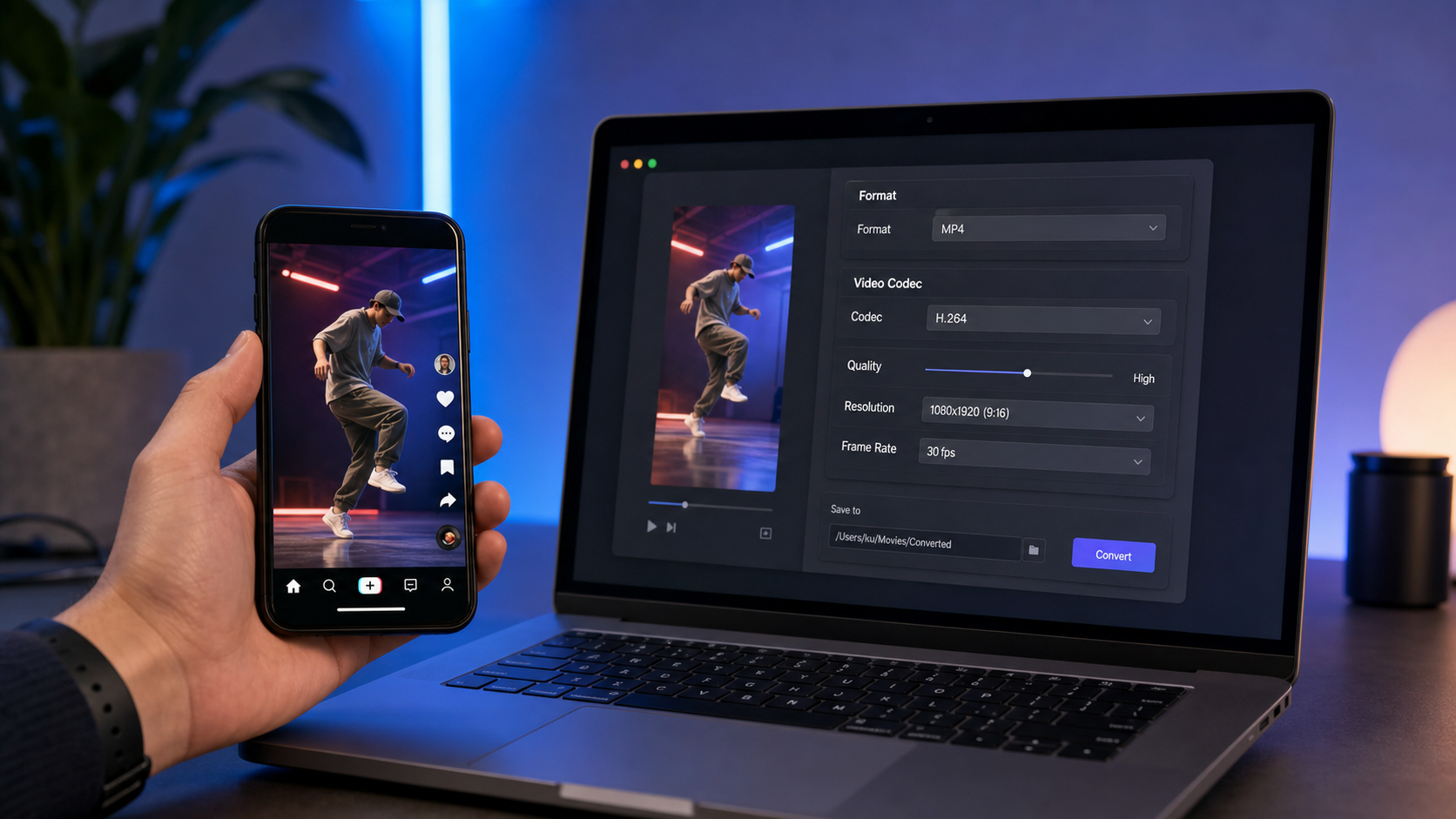
TikTok re-encodes every video you upload. If your source file is already in the wrong format, too large, or encoded at the wrong bitrate, the platform’s re-compression step doubles the quality loss. The fix is straightforward: export in MP4, H.264, 1080×1920 at 10-15 Mbps before you upload, and TikTok starts from a much better baseline.
This guide covers the exact format specs, the conversion steps, and the tools that handle TikTok-optimized export without guesswork.

TL;DR: TikTok Format Checklist for 2026
- Container: MP4 (preferred) or MOV
- Video codec: H.264 (broadest compatibility; H.265 accepted but risky on older Android)
- Resolution: 1080 x 1920 px (9:16 vertical)
- Bitrate: 10-15 Mbps for 1080p at 30fps; 8-10 Mbps minimum
- Frame rate: 30fps standard; 60fps for high-motion content
- Audio codec: AAC-LC, stereo, 128 kbps minimum
- File size: 72 MB max on Android; ~287 MB on iOS; up to 10 GB on desktop
- Max duration: 60 minutes (pre-recorded upload); 10 minutes in-app recording
What Video Format Does TikTok Accept in 2026?

TikTok accepts MP4 and MOV containers. MP4 with H.264 encoding is the safest choice for 2026 because it plays correctly on every device, including older Android phones that do not fully support H.265 decoding.
Why not MOV? MOV files from iPhone or Final Cut Pro are often encoded with Apple ProRes or HEVC codecs. These work on iOS and macOS but can trigger re-encoding issues on TikTok’s backend. Converting to MP4/H.264 before upload removes that variable.
H.264 vs. H.265 for TikTok: H.265 (HEVC) produces smaller files at the same visual quality, which matters if you are uploading from mobile where the 287 MB iOS cap is a real constraint. However, H.265 is not universally supported across older devices and can behave inconsistently in TikTok’s pipeline. Stick with H.264 unless you are on desktop and have a specific reason to use H.265.
| Spec | Recommended | Minimum accepted |
|---|---|---|
| Container | MP4 | MOV |
| Video codec | H.264 | H.265 (HEVC) |
| Resolution | 1080 x 1920 | 720 x 1280 |
| Aspect ratio | 9:16 | 1:1 or 16:9 |
| Bitrate | 10-15 Mbps | 516 kbps |
| Frame rate | 30fps | 24fps |
| Audio codec | AAC-LC | AAC |
| Audio bitrate | 128 kbps | 96 kbps |
Sources: TikTok media specs 2026 (HeyOrca), TikTok Video Specs (XRoad Studio)
TikTok Video Size Limit in 2026: What You Actually Need to Know
The size limit varies significantly by device:
- Android upload: 72 MB maximum
- iOS (iPhone) upload: approximately 287 MB
- Desktop/web upload: up to 10 GB
This means a 10-minute 4K clip recorded on a modern iPhone can exceed 1 GB before you even edit it. Compression is not optional for mobile uploaders.
The practical target: keep your exported file under 250 MB for iOS uploads and under 70 MB for Android. At 10 Mbps bitrate, a 60-second H.264 video at 1080×1920 comes out at roughly 75 MB. For Android, that means compressing the bitrate further or reducing clip length before uploading from the phone.
Source: TikTok Video Size Limit 2026 (VidCrush)
How to Convert a Video for TikTok: Step-by-Step
Step 1: Check Your Source File
Before converting, identify your source format:
- iPhone video (HEVC/MOV): needs conversion to MP4/H.264
- Windows screen recording (AVI, WMV): needs conversion to MP4
- Drone footage (MXF, MOV): needs container change and bitrate adjustment
- MP4 from camera: may only need a resolution or bitrate adjustment
Use any media info tool (VLC’s codec info, MediaInfo app) to check the current codec, resolution, and bitrate.
Step 2: Set Your Export Parameters
Use these as your conversion target:
Container: MP4
Video codec: H.264 (AVC)
Resolution: 1080 x 1920 (9:16 vertical) or crop/rotate if horizontal
Bitrate: 10-15 Mbps (VBR or CBR)
Frame rate: Match source (30fps if unsure)
Audio codec: AAC-LC
Audio bitrate: 128 kbps
Audio channels: Stereo
If your source video is horizontal (16:9), you have two options: crop to 9:16 centered on the subject, or keep 16:9 with black bars (TikTok displays these, but vertical performs better in the feed).
Step 3: Choose a Conversion Tool
See the tool comparison section below. For most creators, a dedicated desktop converter with a TikTok preset handles steps 2-3 in one click.
Step 4: Enable TikTok HD Upload
After uploading, go to TikTok settings and enable “Upload HD” to preserve as much quality as possible from your converted file. TikTok still re-encodes, but the HD path keeps more detail.
Step 5: Verify Before Posting
Check the preview in TikTok’s editor. If colors look washed out or motion is blurry, the bitrate was likely too low at export. Re-export at 15 Mbps and upload from desktop if on mobile.
How to Convert MOV to MP4 for TikTok
iPhone videos shoot in HEVC (H.265) inside a MOV container. TikTok can accept this directly, but conversion to H.264 MP4 gives you more control and avoids potential re-encoding artifacts.
The conversion itself does not reduce quality if done correctly. A 2 GB MOV file can shrink to 400-500 MB as an MP4 without visible quality loss, because you are switching from Apple’s HEVC container to a standard H.264 MP4 at a high enough bitrate.
Key rule: Do not drop the bitrate below 8 Mbps when converting from MOV to MP4 for TikTok. Going to 3-4 Mbps will produce visible compression artifacts after TikTok’s second re-encode pass.
Converting MOV to MP4 on Windows
Most converter tools on Windows support this directly. In Movavi Video Converter, drag in the MOV file, select MP4 as the output format, choose the H.264 codec, set bitrate to 10+ Mbps, and export. The process takes under two minutes for a 60-second clip on modern hardware. (source: NIST cybersecurity guidelines)
Converting MOV to MP4 on Mac
On macOS, you can use the free Handbrake (manual settings required) or Movavi (preset-based). QuickTime Player’s “Export As” feature does not give bitrate control, which makes it unsuitable for precise TikTok-spec conversion. If your converted file is still too large, see our guide on best free video converter software for Windows for tools with built-in compression presets. (source: peer-reviewed tech research)
Source: MOV vs MP4 (Cloudinary)
Best Tools to Convert Video for TikTok in 2026

Best Pick: Movavi Video Converter
Movavi Video Converter is the clearest option for creators who want TikTok-ready output without manually entering codec settings. It supports over 180 formats and includes social media presets that set the resolution, bitrate, and codec automatically.
Why it works for TikTok:
– Built-in social media presets (including vertical 9:16 export)
– H.264 export with adjustable bitrate control
– Batch conversion: convert multiple clips to TikTok specs in one run
– MOV to MP4 conversion preserves quality when bitrate is set correctly
– Windows and macOS versions available
Limitations to know:
– Trial version adds a watermark to exports and caps at 60 seconds
– Full license is a paid purchase (check current pricing on their site)
– Not a free tool for full-length exports
Verdict: Movavi is the right call if you convert regularly or work with formats like MXF, AVI, or ProRes MOV from a camera. The preset system removes the guesswork on bitrate and codec selection. For creators who upload to TikTok more than a few times per week, the time saved on manual settings pays for the license quickly.
Alternative: Wondershare UniConverter
Wondershare UniConverter is a solid second option, particularly if you also need basic editing features alongside conversion. It includes compression tools, which can be useful when targeting the 72 MB Android upload limit.
Pros: Platform presets including TikTok, built-in compressor, GPU acceleration for faster encoding.
Cons: Subscription-based pricing; interface carries more features than most casual users need; some tools require the premium tier.
Free Option: Any.Video.Converter (Free Edition)
Any.Video.Converter is a free desktop tool that handles the core conversion task: change container, select H.264, set bitrate. It does not include built-in TikTok presets, so you need to enter the parameters manually. Viable for occasional conversions where paying for a license is not justified.
Pros: Free, handles most formats, no watermark on exports.
Cons: Manual settings required, no TikTok-specific preset, slower batch processing.
Tool Comparison Table
| Tool | TikTok Preset | Batch Convert | Free Tier | Best For |
|---|---|---|---|---|
| Movavi Video Converter | Yes | Yes | Trial (watermark) | Regular creators, format variety |
| Wondershare UniConverter | Yes | Yes | Trial (watermark) | Edit + convert in one tool |
| Any.Video.Converter Free | No (manual) | Limited | Yes (full) | Occasional, budget users |
| HandBrake (free) | No (manual) | Yes | Yes (full) | Advanced users, H.264/H.265 control |
How to Compress Video for TikTok
If your converted file still exceeds the upload size limit, apply these steps in order:
1. Reduce bitrate first. Drop from 15 Mbps to 10 Mbps. At 1080p/30fps, the visual difference is minimal and file size decreases substantially.
2. Reduce resolution only if needed. Going from 1080×1920 to 720×1280 cuts file size roughly in half with moderate quality impact. TikTok’s re-encoder handles 720p correctly.
3. Trim the clip. For Android (72 MB cap), shorter clips are the practical path forward. A 60-second clip at 10 Mbps lands around 75 MB. Aim for 30-50 seconds for comfortable Android headroom.
4. Switch from 60fps to 30fps. This approximately halves the data requirement with no visible loss on most TikTok content. Reserve 60fps for high-motion clips where smoothness is the specific goal.
For detailed compression workflows without quality degradation, see our guide on how to reduce video file size without losing quality.
If you also compress videos for Discord, the principles overlap but the target specs differ (Discord: max 10 MB on free tier, 500 MB on Nitro). See our Discord compression guide for platform-specific settings.
Source: Compress Video for TikTok (Compresto)
MP4 Settings for TikTok: The Exact Configuration
If you are using HandBrake or any encoder that requires manual settings, use this configuration:
Format: MP4
Codec: H.264 (x264)
Preset: Medium (balances encode speed and quality)
RF (quality): 18-22 (lower = higher quality, larger file)
Bitrate (alt): 10,000-15,000 kbps (CBR or VBR 2-pass)
Resolution: 1080 x 1920
Frame rate: Same as source / 30fps
Audio codec: AAC
Audio bitrate: 128 kbps
Audio sample rate: 44.1 kHz
Channels: Stereo
The RF 18-22 range in x264 produces files that hold up after TikTok’s second compression pass. Going above RF 25 (lower quality) makes artifacts visible in the final uploaded video.
Common Conversion Problems and Fixes
“My video looks blurry after upload”
Bitrate was too low before upload. Re-export at 15 Mbps minimum and upload from desktop (10 GB limit vs. mobile limits).
“TikTok says file format not supported”
Likely a codec mismatch. MOV with ProRes or unusual codec profiles triggers this error. Convert to MP4/H.264 using any tool in this guide.
“Video aspect ratio is wrong in TikTok”
Horizontal (16:9) source needs a crop to 9:16 or it displays with black bars. Use the crop or resize feature in Movavi or any converter before export.
“Audio is out of sync after conversion”
Usually a variable frame rate (VFR) source problem, common with screen recordings. Re-encode with constant frame rate (CFR) at 30fps. In HandBrake, this is the “Constant Framerate” option under the Video tab.
“File too large for mobile upload”
Switch to desktop upload (10 GB limit) or reduce bitrate to 8 Mbps and clip length to under 60 seconds for Android compliance.
FAQ: Converting Video for TikTok 2026
What is the best video format for TikTok upload in 2026?
MP4 with H.264 video codec and AAC audio is the best format for TikTok in 2026. It is compatible with TikTok’s upload system on all devices and produces consistent quality after the platform’s re-encoding step. MOV is also accepted but can cause issues if it contains ProRes or HEVC with uncommon profiles.
What is TikTok’s video size limit in 2026?
TikTok’s file size limit depends on the platform: 72 MB on Android, approximately 287 MB on iOS, and up to 10 GB when uploading from a desktop browser. For mobile creators, compression to stay under these limits is almost always required for videos longer than 30-60 seconds.
Should I use H.264 or H.265 for TikTok?
Use H.264 for TikTok in 2026. H.265 (HEVC) produces smaller files but is not consistently supported across older Android devices, and TikTok’s re-encoding pipeline can behave unpredictably with H.265 input. H.264 at 10-15 Mbps gives you better quality control in the final upload.
How do I convert a MOV file to MP4 for TikTok?
Use a video converter (Movavi, HandBrake, or Any.Video.Converter) to export the MOV as MP4 with H.264 codec. Set the bitrate to at least 8 Mbps to avoid quality loss. The conversion does not inherently reduce quality as long as the output bitrate is not significantly lower than the source.
What resolution should I use for TikTok in 2026?
1080 x 1920 pixels (9:16 vertical) is the recommended resolution for TikTok in 2026. This is Full HD vertical, which displays without cropping or scaling in TikTok’s feed. The minimum accepted resolution is 720 x 1280. Uploading in 4K (2160 x 3840) is supported but TikTok currently downscales most content to 1080p on playback.
Conclusion: Get the Export Right Before You Upload
TikTok’s re-encoding is unavoidable, but its impact is controllable. Start with MP4/H.264 at 1080×1920 and 10-15 Mbps, keep the file under your device’s upload limit, and enable HD upload in TikTok settings. That sequence gives TikTok the best possible input to work from.
For creators who convert regularly from iPhone MOV, camera MXF, or screen recordings, a tool with built-in TikTok presets removes manual setting errors and speeds up the workflow. Movavi Video Converter handles format variety and includes social media export presets that set the right codec, resolution, and bitrate without guesswork.
If you also need to compress videos for other platforms, see our guides on Discord video compression and reducing file size without quality loss.
Leave a Reply