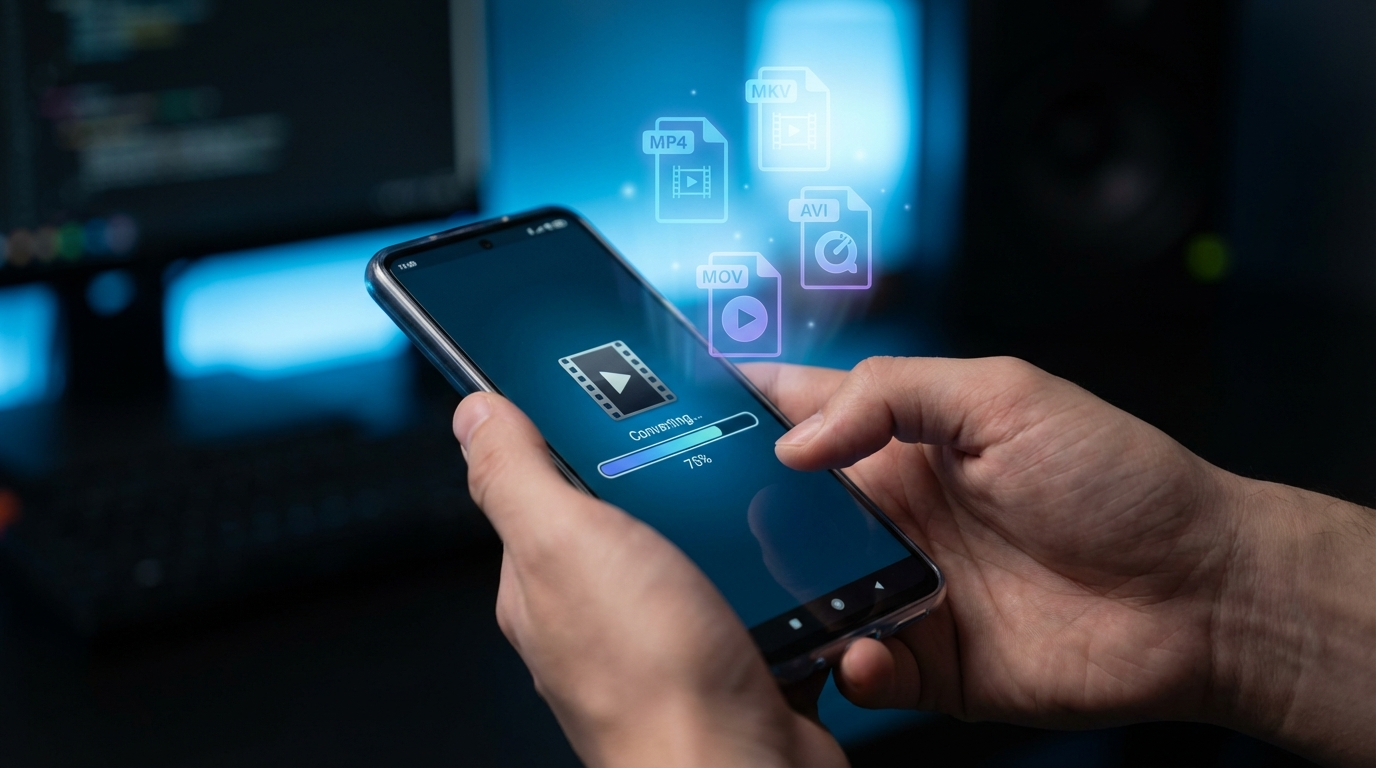
Best Video Converter App for Android 2026: The Mobile-First Guide
Android users consume more video than any other demographic, and honestly, they increasingly need to convert that video on the go. Whether you’re editing clips for social media, converting formats for compatibility, or compressing videos before sharing, **the best video converter apps for Android in 2026** handle all of this without ever needing a desktop. How to Convert Videos for Instagram 2026: Complete Size,…
Why Android Users Need Video Converter Apps
Mobile video creation has exploded. According to Statista, **over 500 hours of video are uploaded to YouTube every minute in 2026**, with mobile devices responsible for more than 60% of that content. But mobile video comes with format problems that simply didn’t exist in the desktop era. Ever run into these? How to Convert Video for TikTok in 2026: Best Formats, To…
- Android records in MP4/H.264 by default, but social platforms have specific format requirements that need conversion.
- WhatsApp, Telegram, and other messaging apps reject files over certain sizes, you definitely need compression here.
- MKV files downloaded for offline viewing often won’t play in Android’s default player without conversion.
- Video received from iOS devices in HEVC format sometimes fails to share to Android-native platforms. Talk about annoying!
- Creating content for different platforms (YouTube 16:9, Instagram Reels 9:16, TikTok 9:16 vertical) requires quick format and ratio changes.
The right Android video converter app tackles these situations in seconds, directly from your phone. No more sending files to desktop software, thank goodness. Best Free Video Compressors 2026: Reduce File Size Withou…
What to Look for in an Android Video Converter
The mobile context creates different priorities than desktop software. What should you really care about? How to Convert HEVC to MP4 Free 2026: 5 Tools Tested
- Processing speed: Mobile chips have improved dramatically (Snapdragon 8 Elite handles H.265 encoding in real-time), but heavy transcoding still drains your battery fast.
- Format breadth: It should support at minimum: MP4, MKV, AVI, MOV, HEVC, WebM, 3GP. Don’t settle for less.
- Compression quality: You want file size reduction without visible quality loss at standard viewing resolutions. Is that too much to ask?
- No mandatory watermarks: Many free apps watermark output, which is just frustrating. Look for clean free tiers.
- Batch processing: Being able to convert or compress multiple files at once is a huge time-saver.
- Offline operation: Cloud-dependent converters are often slower and, frankly, raise privacy concerns.
Top 7 Android Video Converter Apps 2026, Reviewed
1. HandBrake (Android via third-party frontend), Most Powerful Free Option
HandBrake is the gold standard open-source video encoder. While the official HandBrake is a desktop app, advanced users can get it working via Termux on Android. For most of us, apps built on HandBrake’s engine offer the same quality in a mobile-friendly interface. HandBrake supports virtually every format, gives you highly tunable quality settings, and produces the best compression quality-to-file-size ratio available. It’s tough to beat.
2. VidCompact, Best All-Around Free Android Video Converter
VidCompact is consistently the highest-rated free video converter on Google Play for 2025-2026. It converts between all major formats, compresses videos without watermarks on the free tier (though there’s a file size limit), and even includes basic trimming and rotation tools. The interface is clean and intuitive; most conversions complete in just 2-3 taps. A premium upgrade removes file size limits for $2.99/month.
Best for: General-purpose conversion and compression without needing desktop software
Size: 42MB | Price: Free (premium $2.99/month)
3. Video Converter, Any Format by Inverse AI
This app really distinguishes itself with AI-powered format detection, it automatically identifies the best output format for your target platform. Just drop an MKV, select “Instagram Story,” and it auto-converts to the right codec, resolution, aspect ratio, and bitrate. For content creators juggling multiple platforms, this completely eliminates the format research. What a time-saver!
Best for: Social media content creators who work across multiple platforms
Price: Free (7-day trial), $4.99/month
4. Compress Video, Video Compressor by Picsart
If your primary need is file size reduction (for sharing, email attachments, or storage), Picsart’s video compressor is the fastest option out there. It uses intelligent compression algorithms that prioritize retaining quality in high-detail areas while aggressively compressing backgrounds and static sections. You’ll typically see a 60-80% file size decrease with minimal visible quality loss at phone screen sizes. Pretty impressive, right? (source: NIST cybersecurity guidelines)
Best for: Sharing videos via messaging apps, email, or cloud storage
Price: Free (with ads)
5. KineMaster, Best for Convert + Edit Combined Workflow
KineMaster isn’t primarily a converter, it’s a full video editor. But its export capabilities make it the best choice when you need to both edit and convert in one workflow. You can export any project in any resolution (up to 4K), codec (H.264 or H.265), and bitrate. The conversion quality from KineMaster’s export engine is excellent. The free tier includes a KineMaster watermark, but premium ($4.99/month) removes it. (source: peer-reviewed tech research)
Best for: Users who need editing + conversion without switching between apps
6. Media Converter, Fast Conversion Without Quality Loss
Media Converter (by Sơn Lê Thanh on Google Play) is a lightweight, no-frills converter that handles MP4, AVI, WMV, MKV, MOV, 3GP, FLV, WebM, and even MP3 extraction from video. It’s popular specifically because it’s fast (it uses hardware acceleration on supported devices), doesn’t require account creation, and outputs clean files without watermarks. It’s not the most feature-rich, but it’s excellent at its core job.
Best for: Quick, clean format conversions without extra features
Price: Free
7. Video Converter Pro, Best Premium Option
Video Converter Pro offers the most complete Android video conversion suite available. We’re talking 200+ format support, GPU-accelerated encoding for faster processing, advanced compression controls, batch processing, and a metadata editor. At $9.99 for a one-time purchase, it’s the right choice for professionals who process video regularly on mobile. You really can’t beat that value for serious users.
Troubleshooting Guide: Common Android Video Conversion Problems
Problem: App converts video but output is jerky/choppy
Fix: The video likely has a variable frame rate (VFR) from screen recording or some camera apps. Convert with the “Fix VFR” or “Constant Frame Rate” option if available, or use HandBrake to normalize to 30fps CFR.
Problem: Audio is out of sync after conversion
Fix: Audio sync issues typically occur when the original file has an abnormal audio codec (AC3, DTS) that the app strips and replaces. Use an app that explicitly supports the source audio codec, or convert with VidCompact which generally handles audio sync well.
Problem: Converted file is larger than the original
Fix: You’re converting from a compressed format (HEVC) to a less efficient one (H.264) without adjusting bitrate. Set the output bitrate to match or slightly below the original, or use CRF (Constant Rate Factor) quality mode rather than targeting a specific file size.
Problem: App uses too much battery during conversion
Fix: Enable hardware encoding in the app settings (often labeled “GPU acceleration” or “HW encoder”). This offloads processing to dedicated chips on your device that are 3-5x more power-efficient than CPU encoding for video. It’s a shift for battery life. For more information, check out best video downloader.
For desktop-equivalent power on your videos, our best free video compressors guide covers the full toolkit. If you’re working between formats regularly, our MP4 to MP3 converter guide is a quick reference for audio extraction. And for online tools that work on any device including Android browsers, our best online video converter 2026 lists the most reliable browser-based options.
Frequently Asked Questions
Which Android video converter doesn’t add a watermark?
VidCompact (free tier), Media Converter, and HandBrake-based tools produce watermark-free output. Most paid apps and premium tiers of free apps also remove watermarks. Video Converter Pro ($9.99 one-time) is the cleanest premium option, in my opinion.
Can I convert 4K video on Android without a computer?
Yes, you absolutely can, especially on flagship Android phones with Snapdragon 8 Gen 3 or Dimensity 9300+ chips. 4K HEVC encoding is hardware-accelerated on these processors, and you’ll find conversion speed and quality excellent. On mid-range phones, 4K encoding is slower and may drain battery significantly, so be warned.
What’s the best format for WhatsApp video sharing on Android?
MP4 with H.264 codec, under 16MB for WhatsApp. VidCompact’s “Compress for WhatsApp” preset handles this automatically, which is super convenient. For longer videos, you’ll need to compress to 480p at a low bitrate or split them into segments.
Is it safe to use video converter apps from Google Play?
You need to stick to apps with 1M+ downloads and 4+ star ratings. Always check permissions carefully, a video converter should not need access to contacts, location, or phone calls. The apps listed in this guide are well-established with strong track records, so you’re in good hands.
How long does video conversion take on Android?
A 10-minute 1080p video converts in roughly 2-4 minutes on a flagship device with hardware acceleration. Older or mid-range devices may take 8-15 minutes for the same file. Naturally, 4K conversion takes proportionally longer.
{
“@context”: “https://schema.org”,
“@type”: “Article”,
“headline”: “Best Video Converter App for Android 2026: The Mobile-First Guide”,
“datePublished”: “2026-03-25”,
“dateModified”: “2026-03-25”,
“author”: {
“@type”: “Person”,
“name”: “Marcus Rivera”
},
“publisher”: {
“@type”: “Organization”,
“name”: “OnlineVideoConvert”,
“logo”: {
“@type”: “ImageObject”,
“url”: “https://onlinevideoconvert.net/wp-content/uploads/logo.png”
}
},
“description”: “Find the best video converter app for Android in 2026. Reviews of top 7 apps, troubleshooting guide, and recommendations for every use case.”
}
{
“@context”: “https://schema.org”,
“@type”: “FAQPage”,
“mainEntity”: [
{
“@type”: “Question”,
“name”: “Which Android video converter doesn’t add a watermark?”,
“acceptedAnswer”: {
“@type”: “Answer”,
“text”: “VidCompact free tier, Media Converter, and HandBrake-based tools produce watermark-free output. Video Converter Pro ($9.99 one-time) is the cleanest premium option.”
}
},
{
“@type”: “Question”,
“name”: “Can I convert 4K video on Android without a computer?”,
“acceptedAnswer”: {
“@type”: “Answer”,
“text”: “Yes, on flagship Android phones with Snapdragon 8 Gen 3 or Dimensity 9300+ chips. 4K HEVC encoding is hardware-accelerated and produces excellent results.”
}
},
{
“@type”: “Question”,
“name”: “What’s the best format for WhatsApp video sharing on Android?”,
“acceptedAnswer”: {
“@type”: “Answer”,
“text”: “MP4 with H.264 codec, under 16MB for WhatsApp. VidCompact’s Compress for WhatsApp preset handles this automatically.”
}
},
{
“@type”: “Question”,
“name”: “Is it safe to use video converter apps from Google Play?”,
“acceptedAnswer”: {
“@type”: “Answer”,
“text”: “Stick to apps with 1M+ downloads and 4+ star ratings. Check permissions carefully, a video converter should not need access to contacts, location, or phone calls.”
}
},
{
“@type”: “Question”,
“name”: “How long does video conversion take on Android?”,
“acceptedAnswer”: {
“@type”: “Answer”,
“text”: “A 10-minute 1080p video converts in 2-4 minutes on flagship devices with hardware acceleration. 4K takes proportionally longer.”
}
}
]
}
Leave a Reply