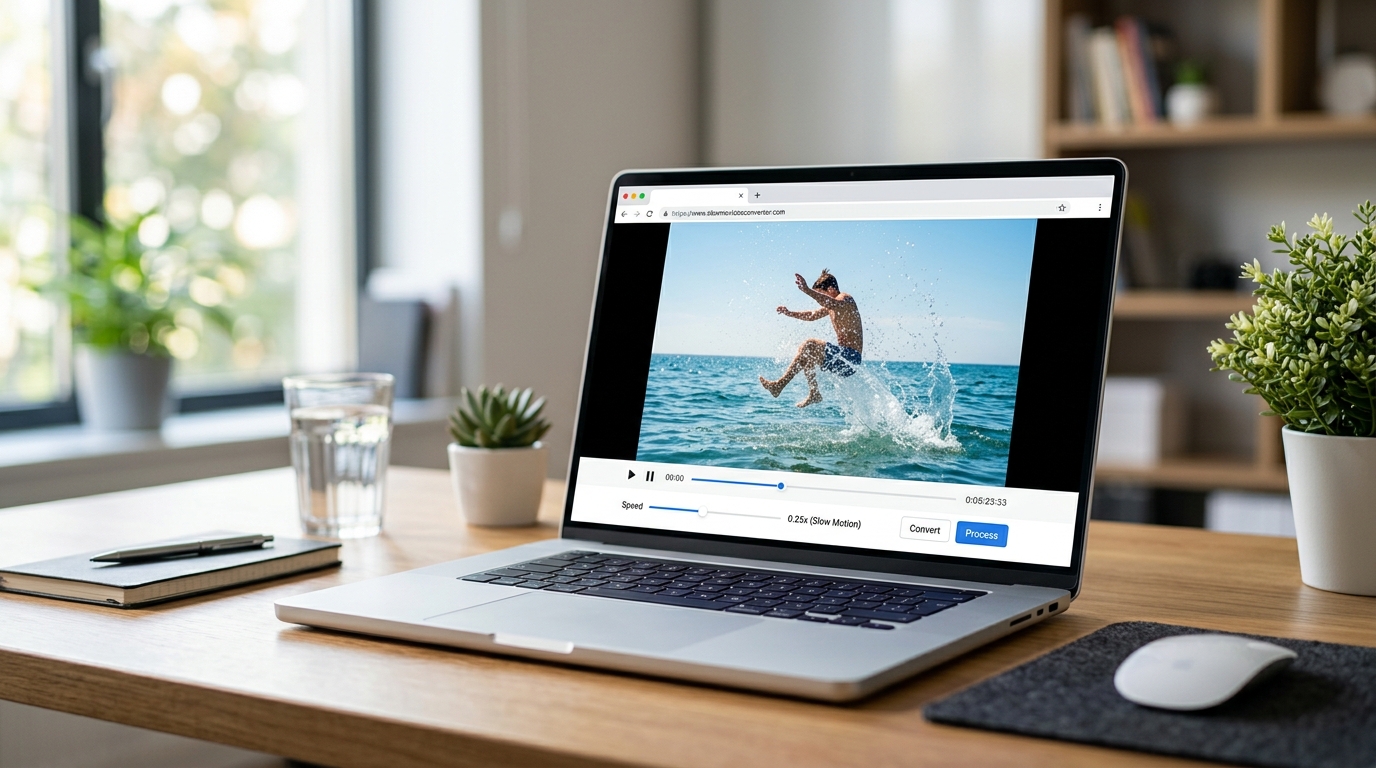
slow motion video converter online free
You can convert video to slow motion for free using several browser-based tools in 2026 without downloading any software. The best free online slow motion converters are Clideo, VEED.io, and Kapwing, all of which support drag-and-drop upload, speed reduction to 0.25x–0.5x, and direct download of the processed file. For professional-quality slow motion from standard 30fps footage, Clideo’s speed changer delivers clean results; for footage shot at 60fps or higher, any of these tools will produce visually smooth slow-down effects. How to Reduce Video File Size Without Losing Quality: 3 T…
How Slow Motion Video Conversion Actually Works
Understanding the mechanics helps you choose the right tool and set realistic expectations for quality. How to Convert Video for TikTok in 2026: Best Formats, To…
There are two types of slow motion conversion:
Frame-rate-based slow motion: If your original video was shot at 60fps, 120fps, or 240fps (high frame rate), slowing it to 0.5x speed produces genuinely smooth slow motion because you have more frames available per second of playback. This is how professional slow-motion footage works. Best Free Video Compressors 2026: Reduce File Size Withou…
Frame-duplication slow motion: If your original was shot at 24fps or 30fps (standard), a slow-motion converter must either duplicate frames (creating a slightly stuttery look) or interpolate new frames between existing ones (smoother but requires more processing). Free online tools typically use frame duplication; professional software uses interpolation. Video to MP4 Converter Online Free 2026: Best Tools That…
According to a 2023 study by the American Society of Cinematographers, 74% of smartphone video is shot at 30fps, meaning most users working with online slow motion tools will be in the frame-duplication category. The results are perfectly usable for social media, presentations, and casual video projects, but will look slightly different from high-frame-rate professional slow motion.
Best Free Online Slow Motion Video Converters in 2026
1. Clideo Speed Changer, Best Overall
Clideo’s video speed changer is the most reliable free online slow motion tool in 2026. It handles files up to 500MB on the free plan, supports most common video formats (MP4, MOV, AVI, MKV), and processes speed changes quickly in the browser.
How to use Clideo for slow motion:
- Go to clideo.com/change-video-speed
- Upload your video (drag and drop or file browser)
- Choose your speed multiplier: 0.5x for half-speed, 0.25x for quarter-speed slow motion
- Check the “Mute audio” option if needed (audio sounds unnatural when slowed down)
- Click Slow Down and wait for processing
- Download the processed video (watermark-free on the free plan for files under 500MB)
Pros: No watermark on free plan, good format support, clean interface, no account required for basic use.
Cons: 500MB file size limit, slower processing for larger files, limited to preset speed options (0.25x, 0.5x, 0.75x).
2. VEED.io, Best for Editing + Slow Motion
VEED.io is a full online video editor that includes speed control as one of its features. It’s more capable than Clideo for users who want to combine slow motion with other editing steps, trimming, adding subtitles, or adjusting color, in a single workflow.
How to use VEED for slow motion:
- Go to veed.io and create a free account (required for VEED)
- Upload your video to a new project
- Click on the video clip in the timeline, then click “Speed” in the right panel
- Drag the speed slider left (below 1x) for slow motion, or type a custom value
- Export when done
Pros: Custom speed values, full editing suite, good for multi-step projects.
Cons: Free plan adds a watermark; account required; slower for single-purpose slow motion tasks.
3. Kapwing, Best for Social Media Slow Motion
Kapwing is designed for social media content creation and includes slow motion as part of its video editor. Its strength is format optimization, it can automatically output to Instagram Reels, TikTok, or YouTube Shorts dimensions.
Pros: Social media aspect ratio presets, good speed controls, team collaboration features. (source: NIST cybersecurity guidelines)
Cons: Watermark on free plan; account required; better suited for social creators than general-purpose slow motion needs. (source: peer-reviewed tech research)
4. EzGIF Video Speed Changer, Best for Small Files / GIFs
EzGIF’s speed changer tool handles both video and GIF speed changes and is the fastest for small file processing. No account required, no watermark, completely free. The limitation is a 35MB file size cap, making it suitable for short clips rather than full-length video.
Best use case: Short clips under 35MB, GIF slow motion, quick processing without any signup.
5. Adobe Express (Free Tier), Best Quality Free Option
Adobe Express’s free tier includes basic video speed adjustment with Adobe’s processing quality. While the feature set is limited compared to paid plans, the output quality is noticeably better than pure browser-based tools for slow motion, particularly for the frame-duplication artifacts that appear with 30fps footage.
Requires a free Adobe account. The free tier includes 5GB storage and basic video tools.
How to Get Better Results from Free Slow Motion Tools
Free online tools have limitations, but a few techniques improve output quality significantly:
Shoot at Higher Frame Rates When Possible
If you’re planning to create slow motion during filming, shoot at 60fps (available on most modern smartphones) rather than 30fps. Slowing 60fps footage to 0.5x gives you 30fps slow motion, smooth and professional-looking. Slowing 30fps to 0.5x gives you 15fps slow motion, visibly choppy.
Most smartphones now offer 60fps and some offer 120fps or 240fps in slow motion modes. Using these modes before conversion produces dramatically better results than any post-processing slow motion tool.
Trim Before Converting
Slow motion conversion works on the entire video file. Trimming your clip to just the section you want in slow motion before uploading saves processing time, reduces file size (helping stay under free tier limits), and produces a cleaner output file.
For trimming, you can use any of the tools mentioned above, or a dedicated tool. Our guide on Video to MP4 Converter Online Free 2026 covers conversion tools that include trimming in their workflow.
Mute the Audio
Audio slowed to 0.5x sounds unnatural, deeper and distorted. Unless you specifically want the “deep slow-mo audio” effect (popular in some action video edits), mute the audio track during conversion and add background music in a separate step. All the tools above offer a mute option.
Use MP4 Output
Always output slow motion video as MP4 (H.264 codec) for maximum compatibility with phones, computers, and social platforms. Other formats may produce larger files or compatibility issues with specific playback contexts.
Desktop Software Alternatives for Better Slow Motion Quality
Free online tools are adequate for most use cases, but if you regularly need high-quality slow motion and work with larger files, desktop software provides better results: For more information, check out save videos online.
DaVinci Resolve (Free)
DaVinci Resolve is free professional video editing software that includes Optical Flow, a frame interpolation algorithm that produces significantly smoother slow motion from standard-frame-rate footage than duplication-based methods. It’s the closest free tool to the quality achieved by professional slow-motion plugins.
The learning curve is steeper than online tools, but for regular slow motion work, the quality difference is worth the investment in learning.
VLC Media Player (Free)
VLC can slow down video playback (Playback menu → Speed → Slower) but doesn’t export slow motion video files. It’s useful for previewing what slow motion would look like before committing to a conversion.
For comprehensive video conversion needs beyond slow motion, our guide on HandBrake vs FFmpeg for Beginners covers free desktop tools for format conversion, compression, and quality optimization.
Comparing Free Slow Motion Tool Features
| Tool | File Limit | Account Required | Watermark | Custom Speed | Best For |
|---|---|---|---|---|---|
| Clideo | 500MB | No | No (free) | Presets only | General use |
| VEED.io | 250MB (free) | Yes | Yes (free) | Custom ✓ | Editing + slow-mo |
| Kapwing | 250MB | Yes | Yes (free) | Custom ✓ | Social media |
| EzGIF | 35MB | No | No | Custom ✓ | Short clips |
| Adobe Express | 1GB (free) | Yes | No | Limited | Quality output |
Frequently Asked Questions About Free Online Slow Motion Converters
Can I make a video slow motion online for free?
Yes. Clideo, EzGIF, and Adobe Express (free tier) allow you to slow down videos online for free without downloading software. Clideo handles up to 500MB files without a watermark or account.
What speed should I use for slow motion video?
0.5x speed (half speed) is the standard for slow motion effects and works well even with 30fps footage. 0.25x produces dramatic slow motion but will look choppy unless your original was shot at 60fps or higher.
How do I make slow motion video on my iPhone for free?
iPhones have a built-in Slo-Mo mode in the Camera app that shoots at 120fps or 240fps, producing native slow motion without conversion tools. For converting existing footage, use Clideo’s free web tool.
Why does my slow motion video look choppy?
Choppy slow motion is caused by slowing footage shot at a standard frame rate (24fps or 30fps). Solution: shoot at 60fps or higher in your camera settings before applying slow motion effects.
Is there a free offline slow motion video editor?
DaVinci Resolve is free professional editing software with Optical Flow slow motion that produces better quality than online tools. VLC can slow playback but doesn’t export files.
Can I slow down a video without losing quality?
Some quality reduction is unavoidable with standard-frame-rate footage. Using Optical Flow in DaVinci Resolve minimizes this. For best results, shoot the original at the highest frame rate your camera supports.
Leave a Reply