Compress Video for Discord Free: Best Tools & Methods 2026
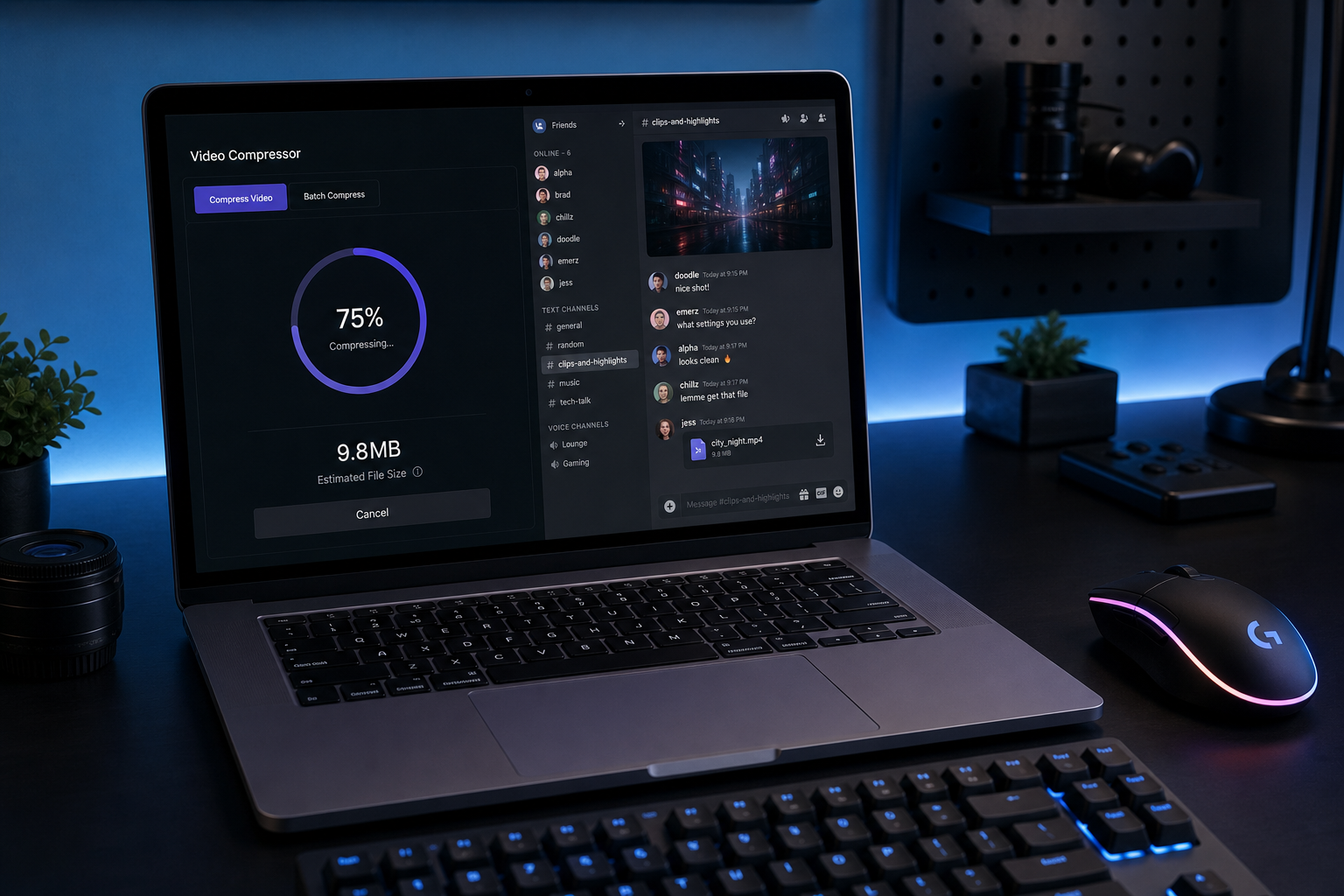
Discord’s free file size limit is 10 MB per upload. That means a typical 60-second screen recording or a short gaming clip will hit the wall before it even gets sent. This guide covers every practical method to compress video for Discord free, from browser tools that take 30 seconds to desktop software that gives you precise control over bitrate, resolution, and codec settings. How to Reduce Video File Size Without Losing Quality: 3 T…
Discord Video Size Limits: What You’re Actually Working With
Discord’s upload limits differ by subscription tier. According to Discord’s official File Attachments FAQ, here are the current caps as of 2026: Compress Video for Discord Free: Under 10MB in 2026 (Test…
| Plan | Upload Limit | Monthly Cost |
|---|---|---|
| Free | 10 MB | $0 |
| Nitro Basic | 50 MB | $2.99/month |
| Nitro (Full) | 500 MB | $9.99/month |
Key fact: Discord lowered the free per-file cap from 25 MB to 10 MB in late 2024. If you’ve been operating on the assumption that 25 MB is still the limit, you need to re-calibrate your compression targets.
For most free users, this means a 1080p clip longer than 20-30 seconds will not send. A 720p clip at standard bitrate runs roughly 5-8 MB per 30 seconds, so you can often fit 30-45 seconds of 720p at reduced bitrate under 10 MB.
The compression target to hit: under 10 MB for free users. Under 50 MB for Nitro Basic.
Method 1: Free Online Compressors (No Download Needed)
Online tools work for most users who need a quick fix without installing software. The tradeoff is file size limits on the upload side and less control over output settings.
How to Use an Online Compressor for Discord
The workflow is the same across most tools:
- Upload your video file (MP4, MOV, MKV all accepted by most tools)
- Set a target file size (enter “10 MB” or select the Discord preset if available)
- Export and download the compressed file
Best Free Online Options
8mb.video (8mb.video) targets Discord’s historical limit specifically. Upload your file and it outputs under 8 MB, no account required. The compression is aggressive and quality drops on longer clips, but for short clips under 60 seconds it performs well.
FreeConvert uses FFmpeg on the backend, which gives it genuine compression quality. It supports up to 1 GB uploads on the free tier and requires no signup. You can set a target file size in MB, which is exactly what Discord users need. Source: compresto.app comparison
VEED offers a Discord-specific compressor at veed.io. It shows an estimated output size before you export, which helps avoid surprises. The free plan has some limitations on export resolution.
Kapwing (kapwing.com/tools/compress/discord) compresses in-browser without requiring software. The free tier adds a watermark on longer projects, so check the terms before relying on it for regular use.
Limitations of Online Tools
- Most cap free uploads at 500 MB to 1 GB
- Quality control is limited (you set a target size, not bitrate or codec)
- Privacy: your video uploads to a third-party server
- No batch processing on free tiers
For one-off clips these work fine. For daily use or anything longer than 2 minutes, a desktop tool gives better results.
Method 2: HandBrake (Free, Desktop, Full Control)
HandBrake is a free, open-source video encoder for Windows, Mac, and Linux. It gives you full control over codec, resolution, frame rate, and bitrate, which means you can hit a precise file size target without guessing.
Download: handbrake.fr
HandBrake Settings for Discord (Under 10 MB)
For a clip under 30 seconds targeting 10 MB:
- Open HandBrake and add your source file
- In the Summary tab, set format to MP4
- In Video, set codec to H.264 (widely supported by Discord’s player)
- Set Constant Quality to RF 28-30 for aggressive compression, or use Average Bitrate mode
- For a target file size, use two-pass encoding: check “2-Pass Encoding” and calculate the bitrate using this formula:
Target bitrate (kbps) = (Target file size in MB x 8192) / duration in seconds
Example: 10 MB target, 30-second clip = (10 x 8192) / 30 = 2,730 kbps total. Subtract 128 kbps for audio = 2,602 kbps for video. (source: NIST cybersecurity guidelines)
- In Dimensions, drop resolution to 1280×720 if the source is 1080p. Discord’s player displays at 1080p max but 720p is sufficient for chat contexts.
- Queue the job and start encoding
HandBrake is the most precise free option for hitting specific file sizes. The downside: it has a learning curve and does not preview output quality before encoding. (source: peer-reviewed tech research)
Method 3: FFmpeg (Command Line, Maximum Control)
FFmpeg is the compression engine that most online tools, HandBrake, and paid software use under the hood. Running it directly gives you the fastest, most precise compression available for free.
Install: ffmpeg.org
FFmpeg Command for Discord (Under 10 MB)
For a 10 MB target on a 30-second clip:
ffmpeg -i input.mp4 -b:v 2600k -b:a 128k -vf scale=1280:720 -c:v libx264 -pass 1 -f null /dev/null &&
ffmpeg -i input.mp4 -b:v 2600k -b:a 128k -vf scale=1280:720 -c:v libx264 -pass 2 output.mp4
This runs a two-pass encode targeting 2,600 kbps video bitrate at 720p. Adjust the bitrate value based on your clip duration using the same formula above.
FFmpeg requires no signup, has no file size limits, runs entirely locally, and produces the highest quality output at a given file size. The barrier is the command line interface, which is not for everyone.
For users comfortable with terminal commands, FFmpeg is the definitive free solution. For those who want a GUI, HandBrake wraps FFmpeg in a visual interface.
Method 4: VLC Media Player (Basic, Already Installed)
VLC includes a basic video conversion and compression feature that many users overlook. It is not a dedicated compressor, but it gets the job done for simple tasks.
Path: Media > Convert/Save > Add source file > Convert > select H.264 + MP3 (MP4) profile
You can reduce file size by lowering the video bitrate in the codec settings. The interface is not intuitive for this purpose, but if VLC is already installed, it avoids an extra download.
VLC does not offer a target file size setting, so you need to manually calculate the bitrate and check the output size after encoding. This makes it less practical than HandBrake for hitting Discord’s 10 MB limit precisely.
Best Pick: Wondershare UniConverter for Discord Compression
For users who compress videos regularly, online tools and command-line options have friction. Wondershare UniConverter is the recommended desktop solution for Discord video compression when you want a GUI with advanced controls, batch processing, and reliable quality output.
Why UniConverter Works Well for Discord
UniConverter includes a dedicated compression module with a target file size input. You type “10 MB” and it calculates the optimal bitrate and resolution automatically. Key features relevant to Discord users:
- Target file size input: set exact MB target, not just a percentage slider
- AI Compress mode: higher quality compression at the cost of longer processing time
- Basic Compress mode: fast compression for quick shares
- Preview before export: check the first 20 seconds before committing to a full encode
- Batch compression: queue multiple Discord clips at once
- H.264 and H.265 output: H.265 at the same visual quality produces smaller files than H.264
According to Wondershare’s Discord compression guide, you can set compression rates between 30% and 90%, where a lower percentage equals higher compression. The Advanced Settings panel lets you manually set encoder, resolution, and frame rate if you want to go beyond the automatic settings.
Pricing: UniConverter has a free trial (watermarked output). The paid license starts at $29.99/year (individual plan, billed annually). For anyone sharing videos on Discord daily or managing a gaming community, the time saved on repeated compression justifies the cost.
Get Wondershare UniConverter and use the preview feature to confirm quality before exporting.
Pros and Cons
Pros:
– Target file size input (rare in free tools)
– Preview before full export
– Batch processing
– AI compression mode for better quality-to-size ratio
– No watermark after purchase
Cons:
– Free trial adds watermark
– Paid software (not free)
– Windows and Mac only (no Linux)
Comparison Table: All Methods Side by Side
| Method | Cost | Target File Size Input | Batch | Quality Control | Privacy |
|---|---|---|---|---|---|
| 8mb.video (online) | Free | Yes (preset) | No | Low | Uploads to server |
| FreeConvert (online) | Free | Yes (MB input) | No | Medium | Uploads to server |
| HandBrake | Free | Via 2-pass bitrate calc | Yes | High | Local |
| FFmpeg | Free | Via bitrate calc | Yes (scripting) | Highest | Local |
| VLC | Free | No (manual bitrate) | No | Medium | Local |
| Wondershare UniConverter | Paid (~$29.99/yr) | Yes (direct MB input) | Yes | High + AI mode | Local |
| Any Video Converter | Free/Paid | Partial | Yes | Medium | Local |
| Movavi Video Converter | Paid | Yes | Yes | High | Local |
Any Video Converter (any-video-converter.com) offers a free desktop option with batch conversion and format control. It lacks the target file size input of UniConverter but works well if you know your target bitrate. A practical alternative for budget-conscious users who need a GUI.
Movavi Video Converter (movavi.com) is another paid option with a clean interface and good compression quality. It handles Discord-sized exports well, though pricing is comparable to UniConverter. Both are worth checking if you want a GUI with more polish than HandBrake.
Discord-Specific Compression Settings Reference
These settings work for most Discord video clips:
| Target | Resolution | Video Bitrate | Audio Bitrate | Codec | Expected Quality |
|---|---|---|---|---|---|
| Under 10 MB (30 sec) | 1280×720 | ~2,600 kbps | 128 kbps | H.264 | Good |
| Under 10 MB (60 sec) | 1280×720 | ~1,200 kbps | 128 kbps | H.264 | Acceptable |
| Under 10 MB (90 sec) | 854×480 | ~800 kbps | 96 kbps | H.264 | Watchable |
| Under 50 MB (Nitro Basic, 5 min) | 1920×1080 | ~1,200 kbps | 128 kbps | H.265 | Good |
For clips longer than 90 seconds targeting the 10 MB free limit, quality will noticeably degrade at 480p. The honest answer: clips longer than 90 seconds at 10 MB do not look great. Use a cloud link (Google Drive, Dropbox) for longer content and paste the URL in Discord instead.
Internal Resources
If you want to go deeper on compression techniques, these guides on this site cover related ground:
- Compress MP4 Without Quality Loss covers bitrate targeting and codec selection in detail
- Best Free Video Converter Online reviews browser-based tools for format conversion
- Video to MP4 Converter Online walks through converting non-MP4 formats that Discord handles less reliably
FAQ
What is Discord’s free file size limit in 2026?
Discord’s free tier allows file uploads up to 10 MB per attachment. This was reduced from 25 MB in late 2024. Nitro Basic raises the limit to 50 MB and full Nitro to 500 MB. (Source: Discord Support)
How do I compress a video to under 10 MB for Discord?
Use a two-pass encode in HandBrake or FFmpeg with a calculated bitrate. For a 30-second clip: set video bitrate to roughly 2,600 kbps at 720p. Alternatively, use an online tool like FreeConvert that accepts a target file size in MB. For a GUI with a direct MB input, Wondershare UniConverter handles this automatically.
Does compressing video for Discord reduce quality?
Yes. All lossy compression reduces quality to some degree. At 10 MB for clips under 30 seconds, 720p looks acceptable. For clips over 60 seconds at 10 MB, quality drops significantly. The codec choice matters: H.265 retains more quality than H.264 at the same file size, but Discord’s player supports both.
What video format should I use for Discord?
MP4 with H.264 video and AAC audio is the most compatible format on Discord across all devices. H.265 in MP4 is also supported but may not preview inline on all clients. Avoid WebM for Discord unless you have tested it on your server’s platform mix.
Can I compress video for Discord on iPhone or Android?
Yes. On iOS, the built-in Photos app lets you share videos in “Smaller” format. Third-party apps like Compress Videos and Video Compressor (available on the App Store and Google Play) give more control. On Android, Video Compressor by Inverita is a frequently recommended free option. For precise control, Wondershare UniConverter has a mobile companion app.
Is there a free tool that compresses video to exactly 8 MB for Discord?
Several online tools target specific byte limits. 8mb.video is built specifically for this use case. VidCrush (vid-crush.com) also compresses to exactly 8 MB using two-pass encoding with no account required. Both are free. Targeting 8 MB rather than 10 MB gives you a 2 MB buffer against minor output size variation.
Verdict
For a one-time compression job: use FreeConvert or 8mb.video online. Zero install, solid output for clips under 60 seconds.
For regular use with precise control: HandBrake (free) is the best no-cost desktop option if you are comfortable with bitrate math.
For a GUI tool that handles file size targeting automatically with batch support: Wondershare UniConverter is the strongest option. The target file size input, preview feature, and AI compression mode make it faster than HandBrake for anyone compressing multiple clips. Get UniConverter here.
Leave a Reply