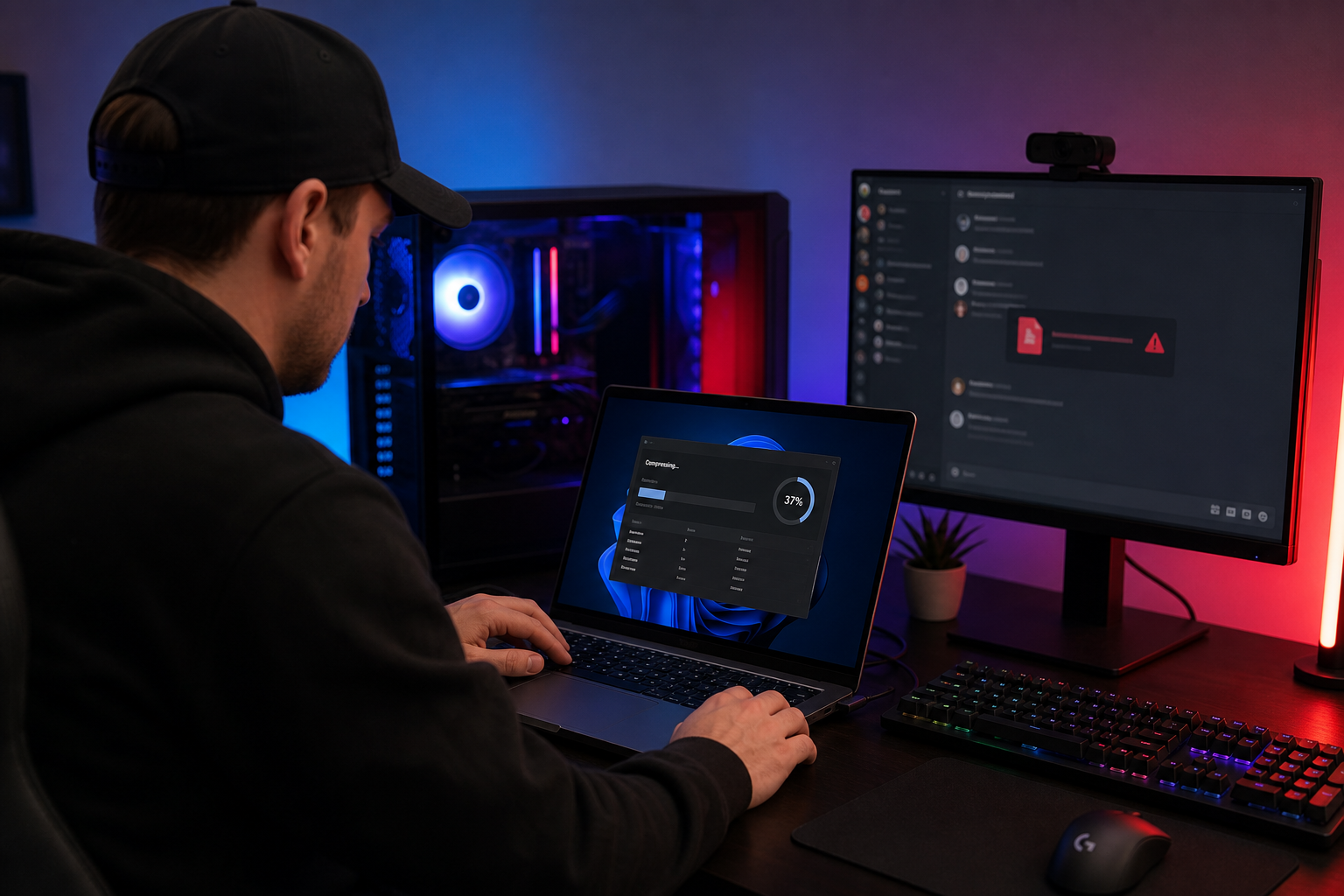
title: “Compress Video for Discord Free: 5 Best Tools That Actually Work (2026)”
slug: “compress-video-for-discord-free”
domain: “onlinevideoconvert.net”
primary_keyword: “compress video for Discord free”
meta_description: “Discord’s free upload limit is 10 MB. Compare 5 free tools to compress video for Discord on Windows, Mac, and mobile — no watermarks, no sign-up.”
date: 2026-07-09
word_count: 2710
status: draft
schema:
– Article
– FAQPage
– Author
Affiliate disclosure: Some links in this guide are affiliate links. If you purchase through them, we may earn a commission at no extra cost to you.
Compress Video for Discord Free: 5 Best Tools That Actually Work (2026)
Discord’s free file upload limit is 10 MB per file as of September 2024. Most screen recordings and phone clips land well above that threshold. The fix is to compress before you upload, not after Discord rejects the file.
This guide covers five tools that get your video under 10 MB without watermarks and without a paid account. Each entry includes exact settings and honest trade-offs.
Discord File Size Limits in 2026
Discord free accounts are capped at 10 MB per upload as of September 2024. That is a reduction from the previous 25 MB limit, which Discord lowered to manage server storage costs. Any guide referencing 25 MB for free users is outdated.
The limits by tier are:
| Tier | Monthly Cost | Upload Limit |
|---|---|---|
| Free | $0 | 10 MB |
| Nitro Basic | $2.99 | 50 MB |
| Full Nitro | $9.99 | 500 MB |
Discord’s official support page (support.discord.com) confirms these tier details. The limit is per-file, not per-message. You cannot work around it by splitting a video across multiple uploads.
A one-minute 1080p clip recorded on a modern phone typically produces a file between 80 MB and 200 MB. Getting that to under 10 MB requires real compression. The approach that preserves quality best: lower resolution and bitrate together, rather than crushing only one setting.
Target format: MP4 container with H.264 video and AAC audio. Discord plays this inline on desktop, iOS, and Android without requiring the recipient to download the file separately.
Best Pick: Any.Video.Converter Free (Windows / Mac)
For anyone compressing video for Discord regularly, Any.Video.Converter Free is the most capable free desktop option available in 2026.
Why it earns the top spot:
- No watermarks, no daily conversion limits, no hidden fees.
- Target file size mode: type “9.5 MB” and the encoder calculates the bitrate automatically. No manual math required.
- Percentage-based mode: reduce to a specified percentage of the original if you prefer that framing.
- Batch processing: add multiple clips and compress them in one queue.
- GPU-accelerated encoding on supported hardware.
- Supports 1000+ input formats including MP4, MOV, MKV, AVI, WebM, and WMV.
- Available on Windows and macOS.
How to compress a video for Discord using Any.Video.Converter:
- Open Any.Video.Converter and click “Add Video” to import your clip.
- Select MP4 (H.264) as the output format.
- Open the compression settings and switch to “Target File Size.”
- Enter 9.5 MB as the target (leaves 0.5 MB of headroom under the Discord limit).
- Set resolution to 720p if the source is 1080p or higher.
- Click “Convert Now.”
The output will be at or under 9.5 MB in most cases. For clips longer than 90 seconds, you may need to drop to 480p or trim the clip before compressing.
Limitations:
- Desktop only. No browser or mobile version.
- The paid “Ultimate” tier adds DVD ripping and screen recording, but those features are not relevant for Discord compression.
- Interface is functional but less polished than some newer tools.
Download Any.Video.Converter Free
5 Free Tools to Compress Video for Discord
Tool 1: Any.Video.Converter Free
Covered in full above. This is the recommended starting point for Windows and Mac users. Use it unless you are on mobile or need a browser-only solution.
Platform: Windows, macOS | Watermark: None | File size control: Target file size mode | Batch: Yes
Tool 2: HandBrake (Windows / Mac / Linux)
HandBrake is free, open-source, and the reference tool for manual video compression. It offers precise control over every encoding parameter including codec, resolution, frame rate, and bitrate. Available at handbrake.fr.
For Discord, use these HandBrake settings:
- Video codec: H.264 (x264)
- Quality mode: switch from CRF to “Avg Bitrate” and enter 600 kbps for video
- Resolution: 720p if the source is 1080p or higher
- Audio: AAC stereo, 128 kbps
- Container: MP4
For a 60-second clip at these settings, the output is typically 4 to 5 MB, well within Discord’s 10 MB limit.
Limitations:
- No target file size preview before encoding. You encode, check the result, adjust bitrate, and encode again if the file is too large. This iteration is slower than Any.Video.Converter’s one-step target size mode.
- The learning curve is real for non-technical users.
- Bitrate calculation for a target size: (target MB x 8,000) / clip duration in seconds = total kbps. For a 9 MB target on a 60-second clip: (9 x 8,000) / 60 = 1,200 kbps total, split between video (1,070 kbps) and audio (128 kbps).
Best for: Users who want full encoder control or who process batches of clips on a schedule.
Platform: Windows, Mac, Linux | Watermark: None | Cost: Free, open-source
Tool 3: 8mb.video (Browser-Based, Any Device)
8mb.video is built for exactly one purpose: compress a video to just under 8 MB. No account, no software download, no watermark.
How to use it:
- Open 8mb.video in any browser.
- Upload your video file (up to 2 GB source, up to 5 minutes long).
- The tool compresses to an 8 MB target automatically.
- Download the result as MP4.
Limitations:
- The 8 MB output target is fixed. You cannot choose 9.5 MB, which means the tool sometimes compresses more aggressively than necessary for short clips.
- No control over codec, resolution, or bitrate settings.
- For long clips with high original quality, visible blocking artifacts are likely because the tool cannot balance settings intelligently across all content types.
Best for: Quick one-off compressions, especially on mobile where installing software is not practical.
Platform: Browser (all) | Watermark: None | Sign-up: Not required
Tool 4: Clideo (Browser, Free Tier with Watermark)
Clideo has a dedicated Discord compression page. It works in any browser on desktop and mobile.
Strengths:
- Drag-and-drop interface, no installation.
- Quality level selection (lower, medium, higher relative quality).
- Preview before downloading.
- Works on iPhone, Android, Windows, and Mac.
Limitations:
- The free tier applies a watermark to the output file. A paid plan ($9/month or $72/year) removes it.
- File size limit on the free tier is 500 MB per upload.
- No batch processing on the free plan.
Best for: Users who have a paid Clideo plan or who want to test compression quality before choosing a tool.
If the watermark is not acceptable and you need a browser tool, use 8mb.video instead.
Platform: Browser (all) | Watermark: Yes (free) / No (paid) | Batch: No (free)
Tool 5: Movavi Video Converter (Windows / Mac)
Movavi Video Converter is a paid desktop tool. A free trial allows limited conversions. The full license starts at $54.95/year.
Movavi’s interface is simpler than HandBrake, and its target file size mode is accurate. For users who compress video as part of a broader editing workflow and want a clean paid desktop app, it is a reasonable option.
Limitations on the free tier: The trial adds a watermark to output. This makes it unsuitable as a free Discord compression tool unless you upgrade.
Best for: Users who compress video regularly across multiple platforms and are evaluating a paid tool purchase.
Platform: Windows, macOS | Watermark: Yes (trial) / No (paid) | Cost: Starts at $54.95/year
How to Compress Video for Discord on Mobile
On iPhone, use 8mb.video in Safari; on Android, use the same tool in Chrome or install a dedicated compressor from Google Play.
iPhone
Open Mobile Safari and navigate to 8mb.video. Tap the upload button and select your video from the Photos library or Files app. Compression runs in the browser without any app download. Once complete, tap the download link and the file saves to your Downloads folder in the Files app.
This approach works in Mobile Safari without any installation. The 5-minute clip limit and fixed 8 MB output target apply here as well.
For longer clips or higher quality requirements, transfer the video to a desktop computer and use Any.Video.Converter or HandBrake.
Alternatively, before recording, go to Settings > Camera > Record Video and set it to 720p at 30 fps. This reduces the original file size without a separate compression step.
Android
Open Chrome on Android and navigate to 8mb.video. The upload and compression flow is identical to iPhone. The compressed file downloads to your device’s default Downloads folder.
For more control over resolution and bitrate on Android, search Google Play for “video compressor” and filter results by “no watermark.” Several apps offer custom output settings without watermarks on the free tier — check reviews and the app changelog to confirm watermark status before installing.
Key point for both platforms: Compressing a 60-second clip to under 10 MB on a phone will produce output at approximately 480p. At 10 MB for 60 seconds, the total available bitrate is roughly 1.3 Mbps, which supports 480p H.264 at acceptable quality. Do not expect 1080p at 10 MB for a one-minute clip.
Compress Video for Discord Without Losing Quality
“Without losing quality” means minimizing visible quality loss, not eliminating it. True lossless compression and a 10 MB file size for a minute of video are incompatible targets. The question is where the quality loss falls.
Principle 1: Shorten the clip before compressing.
A 30-second clip at 1,500 kbps will always look better than a 3-minute clip at 300 kbps. Trim to the most relevant section before compressing. This is the single most effective technique when you have that option.
Principle 2: Lower resolution before lowering bitrate.
Dropping from 1080p to 720p reduces pixel count by approximately 56%. That drop alone can cut file size nearly in half at the same bitrate. Apply resolution reduction first, then adjust bitrate to reach your target file size.
Principle 3: Use H.265 when compatibility allows.
H.265 (HEVC) delivers equivalent visual quality at roughly 40 to 50% lower bitrate than H.264, according to Netflix codec engineering research (technology.netflix.com). Discord’s desktop and mobile clients support H.265 playback. Any.Video.Converter Free and HandBrake both offer H.265 output. Use it if your recipients are on current Discord clients.
Principle 4: Match frame rate reduction to content type.
Gaming footage at 60 fps compressed to 24 fps looks wrong because motion is choppy. Screen recordings of UI walkthroughs at 24 fps are fine because the content has long static periods. Reduce frame rate only when the content type allows it.
You can also use our free video compressor tool for a no-install browser option, or see our guide on how to compress video online for format-specific settings. If your source file is in a format like MOV or MKV, convert it to MP4 first using our video to MP4 converter before compressing.
Tool Comparison and Recommended Workflow
Comparison Table
| Tool | Platform | Free (no watermark) | File Size Control | Batch | Mobile |
|---|---|---|---|---|---|
| Any.Video.Converter Free | Win / Mac | Yes | Target file size mode | Yes | No |
| HandBrake | Win / Mac / Linux | Yes | Bitrate (manual) | Yes | No |
| 8mb.video | Browser (all) | Yes | Fixed 8 MB | No | Yes |
| Clideo | Browser (all) | No (watermark) | Quality levels | No | Yes |
| Movavi | Win / Mac | Trial only | Target file size mode | Yes | No |
Recommended Workflow
Desktop users (Windows / Mac):
Install Any.Video.Converter Free. Set target file size to 9.5 MB, output format to MP4 H.264, and resolution to 720p. Click convert. This is the lowest-friction path to a watermark-free Discord-ready file. Use the batch queue if you have multiple clips.
Mobile users:
Open 8mb.video in your mobile browser. Upload, compress, download. No installation, no account.
Technical users or bulk encoding:
Use HandBrake with a saved preset. Enable GPU encoding (NVENC on Nvidia, VideoToolbox on Mac) to speed up batch jobs. Calculate your bitrate target manually using the formula above.
Source file in MOV, MKV, or another container:
Convert to MP4 first with our video to MP4 converter, then compress. Some source containers cause compatibility issues during compression that MP4 avoids.
FAQ
What is the Discord video file size limit for free users in 2026?
Discord’s free tier allows uploads up to 10 MB per file as of September 2024. This applies to all file types including video. Nitro Basic ($2.99/month) raises the limit to 50 MB. Full Nitro ($9.99/month) allows uploads up to 500 MB. The previous 25 MB free tier no longer applies.
How do I compress a video for Discord on my phone?
On iPhone, open Mobile Safari and use 8mb.video — it compresses video directly in the browser without any app download. On Android, use 8mb.video in Chrome, or search Google Play for a free video compressor with no watermark.
Does compressing video for Discord reduce quality?
Yes, compression always reduces quality to some extent. The degree depends on settings. Lowering resolution from 1080p to 720p and using H.264 at 1,500 kbps minimizes visible quality loss for most content types. Trimming the clip to under 60 seconds before compressing gives the encoder more bitrate to work with per second.
What is the best free Discord video compressor without a watermark?
Any.Video.Converter Free (Windows/Mac) and HandBrake (Windows/Mac/Linux) both offer full compression control with no watermark and no file size limits on the free tier. For browser-based use, 8mb.video requires no account and adds no watermark.
Can I compress video for Discord without downloading software?
Yes. Open 8mb.video in any browser — Chrome, Safari, Firefox, or Edge. Upload your video, the tool compresses it to under 8 MB, and you download the result. No software installation or sign-up required. The tool supports source files up to 2 GB and clips up to 5 minutes long.
Verdict
For most users on Windows or Mac, the fastest path is: install Any.Video.Converter Free, set the target file size to 9.5 MB, select H.264 as the codec, and compress. The target file size mode handles the bitrate math automatically. Watermark-free output and batch processing make it the right default for repeat use.
For mobile or zero-install use: 8mb.video in your browser handles Discord compression on any device.
For users who need precise encoder control or batch jobs at scale: HandBrake with a saved preset.
Movavi is a reasonable paid alternative if you compress video regularly across multiple platforms and want a cleaner interface than HandBrake.
Download Any.Video.Converter Free and get your clip under 10 MB today.
Written by Alex Kumar, software engineer and multimedia specialist at onlinevideoconvert.net.
Leave a Reply