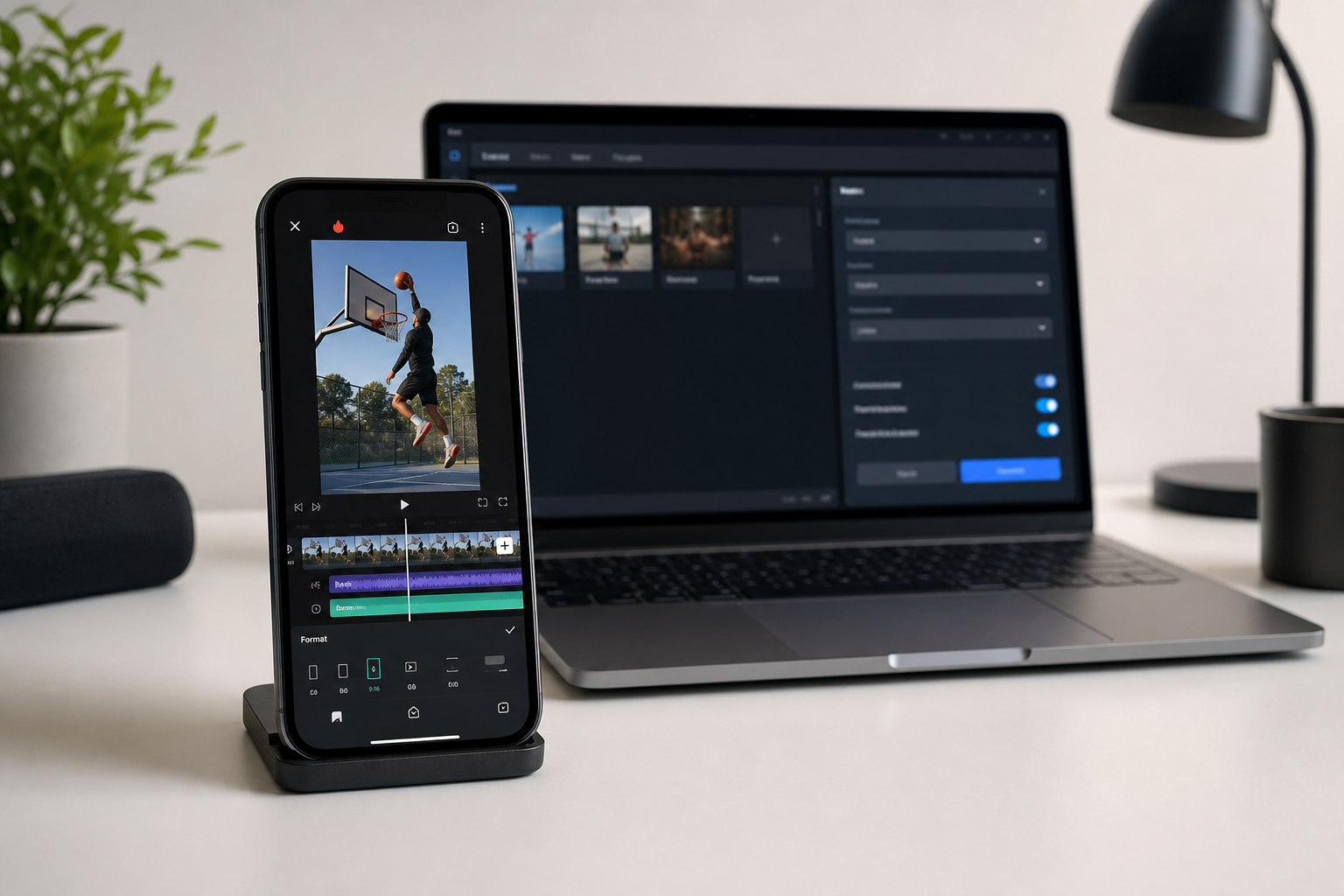
title: “Convert Video for TikTok 2026: Complete Format Guide”
slug: “convert-video-for-tiktok-2026”
domain: “onlinevideoconvert.net”
primary_keyword: “convert video for TikTok 2026”
date: 2026-07-14
word_count: 2680
status: draft
author: “Alex Kumar”
author_credentials: “Video technology specialist and software reviewer”
meta_description: “Learn the best video format for TikTok in 2026: MP4, H.264, 1080×1920, 4-8 Mbps. Step-by-step conversion guide with top tools reviewed.”
schema:
– Article
– FAQPage
– Author
Convert Video for TikTok 2026: Complete Format Guide
The right format for TikTok upload in 2026 is MP4, H.264 codec, 1080×1920 pixels (9:16), 4-8 Mbps bitrate, 30fps, AAC audio at 44.1 kHz. Use those settings and TikTok’s transcoder will have the best input to work with. Upload anything else and you risk blurry output, upload errors, or silent rejection by the platform.
This guide covers every spec you need, explains why TikTok’s compression behaves the way it does, and shows you which tools handle the conversion without destroying quality.
TikTok Video Specs 2026: The Complete Reference Table

TikTok updated its processing pipeline in 2025 and the specs below reflect current requirements. Source: TikTok Creator Portal and verified against third-party spec trackers (xroadstudio.com, postfa.st).
Required Settings at a Glance
| Parameter | Recommended Value | Minimum Accepted |
|---|---|---|
| Format | MP4 | MOV, WebM |
| Codec (video) | H.264 | H.265, VP9 |
| Resolution | 1080 x 1920 px | 540 x 960 px |
| Aspect ratio | 9:16 | 1:1, 16:9 also accepted |
| Frame rate | 30 fps | 23 fps |
| Bitrate | 4-8 Mbps | 2 Mbps |
| Audio codec | AAC | MP3 |
| Audio sample rate | 44.1 kHz | 44.1 kHz |
| Audio bitrate | 128 kbps+ | 96 kbps |
| Max file size (iOS) | 287.6 MB | – |
| Max file size (Android) | 72 MB | – |
| Max file size (Desktop) | 500 MB | – |
| Max video length | 10 min (app) / 60 min (select accounts) | – |
Why H.264 Instead of H.265?
H.265 (HEVC) compresses better at the same quality level. So why not use it? TikTok’s server-side transcoder re-encodes everything it receives. If your source file is already in H.265, TikTok re-encodes to H.264 for delivery. Transcoding HEVC to H.264 introduces additional generation loss. Uploading H.264 from the start skips one re-encode step. The output is cleaner.
H.265 source files are fine if your camera exports them (iPhone footage, for example). Just convert to H.264 before uploading.
Safe Zone: Where Not to Put Text or Faces
TikTok’s interface overlays your video at specific positions. Keep important content away from:
- Top 120 px: progress bar and status icons
- Right side column (roughly 80 px wide): like, comment, share buttons
- Bottom 250 px: username, caption text, audio bar
Center your subject between approximately y=120 and y=1670 for safe framing.
Best Video Format for TikTok Upload: MP4 vs MOV vs WebM
TikTok accepts MP4, MOV, and WebM. Here is how they compare in practice.
MP4 (H.264)
MP4 with H.264 is the most universally compatible option. Every editing tool, phone, and computer can produce it. TikTok’s uploader handles it without errors. After TikTok’s compression, videos uploaded as H.264 MP4 consistently show less quality degradation than alternatives in informal comparisons across creator communities (source: stackinfluence.com).
Use this for: All standard uploads from editing software (Premiere, DaVinci Resolve, CapCut desktop).
MOV (QuickTime)
MOV is Apple’s container format. If you are on a Mac or exporting from Final Cut Pro, MOV with H.264 works fine. The file size is often larger than an equivalent MP4 at the same quality. There is no quality advantage over MP4 for TikTok purposes. The main reason to use MOV is workflow convenience when you are already in a Mac-native pipeline.
Use this for: Final Cut Pro exports, or when you want to avoid re-encoding Apple ProRes footage before uploading.
WebM (VP9)
WebM is a web-optimized format. TikTok does accept it, but the combination of VP9 video and Vorbis audio requires TikTok to do more work during transcoding. The output quality can vary. Avoid WebM for TikTok uploads unless you have a specific reason to use it.
Use this for: Web embeds outside TikTok. Not recommended for direct TikTok upload.
Verdict: MP4 with H.264 is the correct choice for TikTok in 2026. No exceptions needed for the vast majority of creators.
How to Compress Video for TikTok Without Losing Quality

TikTok compresses your video after upload regardless of what you do. Your job is to give the platform the best possible input so it has more data to work with during transcoding.
The Bitrate Strategy
Higher bitrate = more data = TikTok has more to work with = cleaner output. The practical ceiling for most workflows is 8 Mbps. Going above that gives diminishing returns because TikTok’s delivery codec targets lower bitrates anyway.
For a 60-second clip at 8 Mbps with AAC 128 kbps audio, the file size is roughly 62 MB. That fits within the Android limit (72 MB) and well within the iOS and desktop limits.
If your file is too large after export:
- Trim to the minimum necessary length first.
- Lower bitrate to 4-5 Mbps (quality impact is minimal at 1080p for TikTok delivery).
- Reduce resolution to 720p (1280×720 in vertical = 720×1280) only as a last resort.
Do not reduce resolution below 720p. TikTok will upscale it and the output looks worse than a well-compressed 1080p source.
Format Conversion Workflow
If you are starting from a file type TikTok does not handle well (AVI, MKV, WMV, FLV, HEVC), here is the conversion path:
Source file (any format) → MP4, H.264, 9:16 crop, 1080×1920, 4-8 Mbps, AAC 44.1 kHz → TikTok upload
The crop step matters. If your source is 16:9 (standard landscape), you have two options:
- Crop to 9:16: Loses the sides of the frame. Best for talking-head content.
- Fit with black bars: Keeps the full frame but adds letterbox bars top and bottom. Engagement tends to be lower with black bars on TikTok.
Most creators crop. A few use the 1:1 square format (1080×1080) as a compromise when the horizontal composition is essential.
Best TikTok Video Converter Tools in 2026
Best Pick: Movavi Video Converter
Movavi Video Converter handles TikTok export directly. It includes a preset for TikTok that sets the aspect ratio to 9:16, output to MP4, and codec to H.264 automatically. You do not need to manually configure bitrate or audio settings.
Key features relevant to TikTok workflows:
- Hardware-accelerated encoding (NVIDIA, AMD, Intel) makes conversion fast on mid-range laptops
- Built-in trim tool to cut footage before export
- Batch conversion for processing multiple clips in one pass
- AI upscaling for low-resolution source footage (useful when converting older 720p content for TikTok’s 1080p requirements)
Drawbacks to know: The free trial watermarks every export. Audio conversion is limited in trial mode. You need a paid license to use it properly. Pricing is around $45-55/year [TK: confirm current pricing on Movavi site].
For creators who upload regularly and need reliable, repeatable TikTok-ready exports, Movavi is the most direct path. The preset removes guesswork.
Alternative 1: Any.Video.Converter (Free Desktop Option)
Any.Video.Converter is a free Windows desktop tool that handles most input formats. It does not have a TikTok preset, so you need to set the output parameters manually: MP4, H.264, 1080×1920, 30fps. The free version includes most conversion features without watermarks, which gives it an advantage over Movavi for budget-conscious creators.
The interface is older and less polished. Batch processing works but is slower than Movavi. Useful for occasional conversions when you do not want to pay for a license.
Alternative 2: Wondershare UniConverter (All-in-One Option)
Wondershare UniConverter targets creators who want editing, compression, and conversion in one application. It includes a social media export preset section with TikTok listed. Pricing is higher than Movavi (around $39-89/year depending on plan [TK: confirm]).
The main reason to choose UniConverter over Movavi is if you also need screen recording or DVD burning in the same software package.
Free Online Option: HandBrake
HandBrake is open-source and free with no watermarks. It does not have a TikTok preset but you can configure output to MP4, H.264, 1080×1920, 30fps manually. The H.264 quality slider (RF setting) at RF 18-20 produces good results for TikTok source files. It is a strong option if you are comfortable adjusting settings yourself.
Download: handbrake.fr
Step-by-Step: Convert Any Video for TikTok Using Movavi

This walkthrough assumes you have a 16:9 MP4 or MKV file you want to convert to a TikTok-ready vertical format.
Step 1: Import Your File
Open Movavi Video Converter. Drag your source file into the conversion window. The software shows a preview and the source file’s current specs (resolution, codec, duration, file size).
Step 2: Select the TikTok Preset
Click the output format selector at the bottom of the screen. Navigate to “Video” and use the search or browse to find the TikTok preset. This sets the output to 9:16 MP4 with H.264 automatically.
Step 3: Trim if Needed
TikTok’s algorithm favors shorter videos for initial distribution. Use the trim tool (scissors icon) to cut your clip to the portion you want to upload. For standard content, under 60 seconds works well for feed reach. Tutorials and how-tos can run up to 3 minutes effectively.
Step 4: Set Bitrate (Optional Manual Override)
The TikTok preset uses a default bitrate. If you want to override it: click the settings icon next to the output preset. Change the video bitrate to 6000 kbps (6 Mbps) for a good quality-to-file-size balance. Leave audio at 128 kbps AAC.
Step 5: Convert
Click “Convert”. Processing time depends on your hardware. With hardware acceleration enabled on a modern laptop, a 60-second 1080p clip typically converts in 15-40 seconds.
Step 6: Verify Output
Before uploading, check the output file: right-click, Properties, open with a media info tool or VLC (Tools > Media Information). Confirm: MP4 container, H.264 video codec, 1080×1920, 30fps, AAC audio, file size within platform limits.
TikTok Video Format for Specific Use Cases
Repurposing YouTube Videos for TikTok
If you already have a free video downloader and need to download the TikTok video first using a free video downloader, or are working with a YouTube export, most YouTube content is 16:9 landscape. The conversion process adds the 9:16 crop step.
For talking-head YouTube content: crop to the face and shoulders. You lose background context but the composition works for TikTok’s vertical frame.
For screen recordings and tutorials: consider using a split-screen approach where the original 16:9 content fills the center third of the vertical frame, with your face or text in the top and bottom sections. Some editors call this a “pillar push” layout.
iPhone HEVC (H.265) Footage
iPhones record in HEVC (H.265) and HEIF formats since iOS 11. That footage needs conversion before TikTok upload in most cases. Steps:
- Export from iPhone to Mac/PC via AirDrop or cable.
- Convert H.265 MOV to H.264 MP4 using Movavi or HandBrake.
- Apply 9:16 crop if the original is landscape.
- Upload.
iPhone vertical video (shot holding phone upright) is already 9:16. If the resolution is 1920×1080 in portrait, it just needs codec conversion from H.265 to H.264.
Videos Shot in 4K
4K source footage (3840×2160 or 2160×3840 in portrait) should be downscaled to 1080×1920 before upload. TikTok does not deliver at 4K. Uploading 4K adds upload time and file size without improving the viewer’s experience. Scale down during conversion.
Compress Video for TikTok: Troubleshooting Common Upload Errors
“File size too large”
Android users hit the 72 MB cap frequently. Solutions in order:
- Upload via desktop browser (500 MB limit).
- Reduce bitrate to 3-4 Mbps.
- Trim the video to a shorter clip.
- Drop to 720p resolution.
“Video format not supported”
This usually means the codec is not H.264, or the container is not MP4/MOV. AVI, FLV, WMV, and MXF files need conversion before upload. Use any of the tools listed above to convert first.
Video Looks Blurry After Upload
Two common causes:
- Source bitrate was too low. TikTok cannot improve what it receives. If you uploaded at 1 Mbps, the output will show compression artifacts. Re-export at 4+ Mbps.
- Resolution was below 1080p. Upload 1080×1920 px. 720p sources are upscaled by TikTok, which adds visible blurring.
Audio Out of Sync
Caused by frame rate mismatch during conversion. If your source is 24fps and your converter outputs 30fps without proper frame rate handling, audio drifts. Set your conversion output frame rate to match the source, or use a tool like Movavi that handles frame rate automatically.
For related platform optimization guides, see:
– Compress video for Discord free
– How to reduce video size for WhatsApp free
– Best video format for YouTube upload 2026
FAQ: Convert Video for TikTok 2026
What is the best video format for TikTok in 2026?
MP4 with H.264 codec is the best format for TikTok in 2026. Set resolution to 1080×1920 (9:16 vertical), frame rate to 30fps, video bitrate to 4-8 Mbps, and audio to AAC at 44.1 kHz / 128 kbps.
Can I upload MOV files to TikTok?
Yes. TikTok accepts MOV files. MOV with H.264 video and AAC audio works correctly. MOV files tend to be larger than equivalent MP4 files. If file size is a concern, convert to MP4 before uploading.
Why does my TikTok video look blurry after uploading?
The most common cause is low bitrate in the source file. TikTok compresses everything on its servers. If your export bitrate was under 2 Mbps, the re-encoding compounds the quality loss. Re-export at 4-8 Mbps and upload again.
What is the maximum file size for TikTok video upload?
72 MB on Android, 287.6 MB on iOS, and 500 MB when uploading via desktop browser. Use the desktop upload path for longer videos or higher-bitrate exports.
Do I need to crop my horizontal video to 9:16 for TikTok?
You do not have to, but horizontal videos (16:9) display with black bars in TikTok’s vertical interface. Engagement on letterboxed content is typically lower. Cropping to 9:16 or using a vertical-format layout is recommended for most content types.
Verdict: Which Tool Should You Use?
For most creators uploading regularly to TikTok, Movavi Video Converter is the most practical choice. The TikTok preset removes manual configuration, hardware acceleration keeps conversion times short, and the trim tool lets you cut clips before export. The paid license removes the trial watermark and unlocks batch processing for multi-clip workflows.
If you only convert occasionally and do not want to pay for software, HandBrake is the correct free alternative. Any.Video.Converter covers the middle ground if you want a simpler interface than HandBrake without a subscription.
The format settings remain the same regardless of which tool you use: MP4, H.264, 1080×1920, 4-8 Mbps, 30fps, AAC 44.1 kHz. Get those right and TikTok’s transcoder will have the best possible source to work with.
Get Movavi Video Converter and convert your first TikTok-ready file today
Affiliate disclosure: Some links in this article are affiliate links. We may receive a commission if you make a purchase, at no additional cost to you. We only recommend tools we consider genuinely useful for the described workflow.
Leave a Reply