Best iPhone Video Format 2026: Stop Losing Video Quality
iPhone records video in HEVC (H.265) by default, wrapped in a MOV container. That single fact explains why your videos play perfectly on Apple devices yet refuse to open in older Windows apps, certain web tools, or some smart TVs. Understanding the distinction between the container (MOV or MP4) and the codec inside it (H.264 or HEVC) is the key to solving every iPhone video compatibility problem.
This guide covers every format iPhone supports in 2026, when to switch settings, and how to convert HEVC to MP4 without losing quality.
What Format Does iPhone Record Video In?
iPhone records video as a MOV file with HEVC (H.265) encoding by default since iOS 11. That is the short answer. The longer version requires separating two concepts.
Container vs. Codec
A video file has two independent layers:
- Container: The wrapper that holds video, audio, and metadata. iPhone uses
.mov(QuickTime format). When you convert or share, that often becomes.mp4. - Codec: The compression algorithm inside the container. iPhone uses either H.264 or HEVC (H.265), depending on your camera settings.
A MOV file from iPhone and an MP4 file can use the exact same H.264 codec inside. The extension alone tells you nothing about quality or compatibility.
The Two Recording Modes
Go to Settings > Camera > Formats and you will find two options:
| Setting | Container | Codec | File Size |
|---|---|---|---|
| High Efficiency (default) | MOV | HEVC / H.265 | Smallest |
| Most Compatible | MOV | H.264 | ~40-50% larger |
Apple’s official support page for HEIF and HEVC media confirms that High Efficiency has been the default since iPhone 7 launched with iOS 11 in 2017.
What Is HEVC Format?
HEVC (High Efficiency Video Coding) is a video compression standard, also called H.265. It is the successor to H.264 and produces the same visual quality at roughly half the file size.
Why Apple Chose HEVC
A one-minute 4K video at 60 fps in H.264 occupies approximately 400 MB. The same clip in HEVC runs closer to 200 MB. For a 256 GB iPhone that records 4K video regularly, that difference adds up to hours of extra storage.
HEVC also preserves more detail at lower bitrates, which matters for 4K HDR footage where color depth and dynamic range require more data to encode accurately.
Where HEVC Causes Problems
HEVC compatibility is not universal in 2026. Problems appear in specific contexts:
- Older Windows PCs without the HEVC Video Extensions codec from the Microsoft Store
- Browser-based video editors that lack H.265 hardware decoding
- Smart TVs manufactured before 2018, many of which have no HEVC decoder
- Video editing apps running on systems with older GPUs
When you share a HEVC video from iPhone to an incompatible device, you get a blank thumbnail, a playback error, or the video simply does not open.
iPhone Video Format Settings in 2026
Apple’s Change video recording settings support page documents every resolution and frame rate option available per model.
Resolution and Frame Rate Options
Modern iPhones (iPhone 15 and later) support:
- 720p HD at 30 fps
- 1080p HD at 30 fps or 60 fps
- 4K at 24, 25, 30, or 60 fps
Higher frame rates produce smoother motion but larger files. 4K at 24 fps is the standard for cinematic content. 4K at 60 fps is for sports and action.
How to Switch to H.264 on iPhone
If you need maximum compatibility across platforms:
- Open Settings on your iPhone
- Tap Camera
- Tap Formats
- Select Most Compatible
All new recordings will use H.264 inside a MOV container. Existing HEVC clips are not affected. To share old HEVC clips in H.264, you need to convert them (covered below).
The Auto-Convert Option
iOS has a setting called “Transfer to Mac or PC” that automatically re-encodes HEVC to H.264 when you connect your iPhone via USB and transfer files. Find it at Settings > Camera > Transfer to Mac or PC > Automatic. This is useful for a workflow where you always edit on a PC without native HEVC support. (source: NIST cybersecurity guidelines)
iPhone Compatible Video Formats for Playback
iPhone plays back a wide range of formats, not just what it records. MP4, MOV, M4V, and 3GP all open without any conversion needed. The codecs supported for playback include H.264, HEVC, MPEG-4, and M-JPEG. (source: peer-reviewed tech research)
Two widely used codecs that iPhone does not support for local playback are AV1 and VP9. Those formats require a third-party app such as VLC or Infuse.
Formats That Play on iPhone Without Conversion
| Format | Container | Native Support |
|---|---|---|
| H.264 + MP4 | MP4 | Yes |
| H.264 + MOV | MOV | Yes |
| HEVC + MOV | MOV | Yes (iPhone 7 and later) |
| HEVC + MP4 | MP4 | Yes (iPhone 7 and later) |
| MPEG-4 | MP4, M4V | Yes |
| AV1 | WebM, MP4 | No (needs VLC) |
| VP9 | WebM | No (needs VLC) |
If a video will not play on iPhone, the most common cause is an unsupported codec, not an unsupported container.
Apple ProRes: The Professional Option
Apple ProRes is a professional video codec available on iPhone 15 Pro, iPhone 16 Pro, and iPhone 16 Pro Max. It is designed for editors who need maximum quality and color data for post-production work.
What ProRes Offers
ProRes records at a much higher bitrate than HEVC or H.264, which preserves more information for color grading and visual effects. A one-minute 4K ProRes video can occupy 6 GB or more, according to Apple’s ProRes documentation. That is not a format for casual sharing. It is a format for shooting footage you intend to edit professionally before export.
Enabling ProRes
Go to Settings > Camera > Formats, then turn on Apple ProRes. Note two firm limitations:
- ProRes is not available in Cinematic, Time-lapse, or Slo-Mo modes
- On iPhone 15 Pro, ProRes at 4K requires an external storage device connected via USB-C. Internal recording is limited to 1080p ProRes.
ProRes Log Encoding
iPhone 16 Pro and iPhone 17 Pro models support ProRes with Log encoding, which captures a flat, wide dynamic range image. Log footage looks washed out until you apply a LUT (lookup table) in post. This is the format film crews use when they need maximum flexibility in color grading.
For most content creators, HEVC or H.264 is the right choice. ProRes is for professional production workflows.
Convert HEVC to MP4: Your Options in 2026
When you need HEVC footage to work on a PC, inside a web app, or on a platform that rejects H.265, conversion is the solution. The goal is to re-encode from HEVC to H.264 inside an MP4 container, which plays on virtually everything.
There are three categories of tools: free desktop software, paid desktop software, and online converters.
Best Pick: HandBrake (Free, No Watermark)
HandBrake is an open-source video transcoder for Windows, Mac, and Linux. It handles HEVC to H.264 conversion reliably and gives you precise control over quality settings.
Why HandBrake is the recommended choice:
- Completely free, no watermark, no file size limit
- Batch conversion for multiple iPhone clips at once
- The RF (Constant Rate Factor) quality slider lets you balance file size against quality precisely
- Preset library includes settings optimized for specific devices and platforms
- Active development with regular updates
How to convert iPhone HEVC to MP4 with HandBrake:
- Download HandBrake from handbrake.fr
- Open the app and drag your MOV file onto the queue
- Under Summary, confirm the container is set to MP4
- Under Video, set Video Codec to H.264
- Set Quality to RF 22-26 (lower number = higher quality, larger file)
- Click Start Encode
The output is an MP4 file with H.264 encoding that opens in any player on any platform.
HandBrake limitations: No built-in cloud storage, no mobile app, no direct share-to-platform. It is a desktop tool. If you need to convert directly on your phone or share to a URL, a web-based option works better.
Alternative: Movavi Video Converter
Movavi Video Converter is a paid desktop application for Windows and Mac. It handles HEVC to MP4 conversion with a simpler interface than HandBrake and adds features like audio track editing, subtitle embedding, and hardware acceleration.
Movavi suits users who convert video regularly and want a polished interface without configuring encoder settings manually. The free trial adds a watermark; the paid version does not.
Alternative: Wondershare UniConverter
Wondershare UniConverter offers batch conversion, a built-in video editor, and direct upload to platforms like YouTube and Vimeo. It works on Windows and Mac. Like Movavi, it is a paid product with a free trial that limits output.
UniConverter is worth considering if your workflow includes light editing before conversion, since it reduces the number of apps you need open.
When to Use an Online Converter
If you need to convert one or two short clips without installing software, online converters are adequate. For large files or batches, desktop tools are faster and more reliable. Our existing guide on how to reduce video file size without losing quality covers online compression options in detail.
Which iPhone Video Format Should You Use?
The right format depends on where the video ends up.
| Use Case | Recommended Format | Why |
|---|---|---|
| Stay in Apple ecosystem | HEVC (High Efficiency) | Smaller files, full quality |
| Share to Windows users | H.264 / Most Compatible | Broadest compatibility |
| Upload to YouTube, TikTok | HEVC or H.264, MP4 | Both accepted; see platform guides |
| Professional editing | ProRes (Pro models only) | Maximum quality for post-production |
| Send via email or Discord | H.264 + compress | Smaller file, no compatibility issues |
| Archive long-term | HEVC | Best quality-to-size ratio |
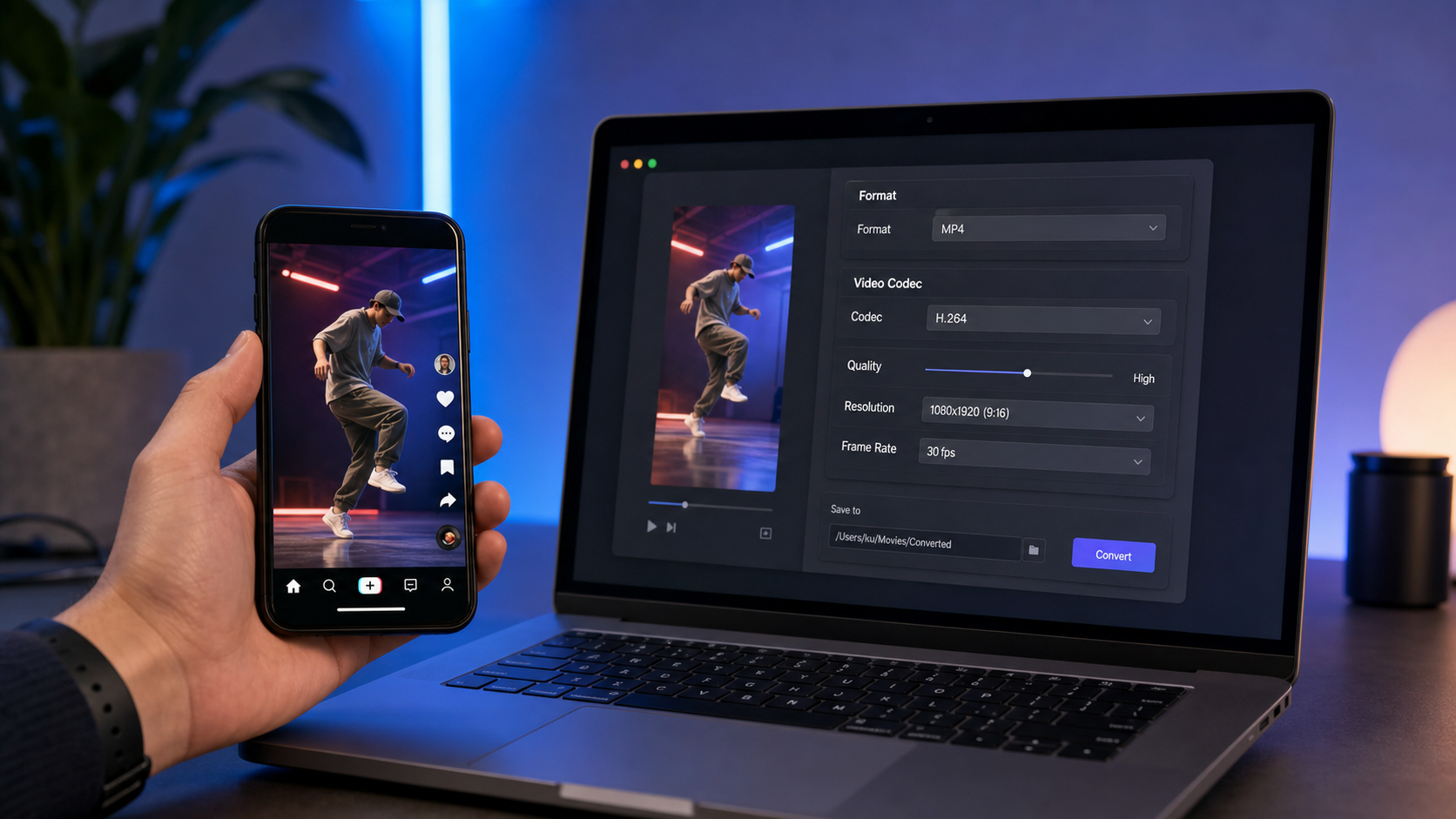
For TikTok specifically, our guide on how to convert video for TikTok in 2026 covers the exact resolution, bitrate, and format settings TikTok’s algorithm favors.
For sharing to Discord without hitting file size limits, see our guide on how to compress video for Discord free.
FAQ: iPhone Video Format Questions
What format are iPhone videos recorded in?
iPhone records video as MOV files by default. The codec inside is HEVC (H.265) when using High Efficiency mode, or H.264 when using Most Compatible mode. You can switch between these in Settings > Camera > Formats.
Why won’t my iPhone video play on my PC?
The most common reason is that your PC lacks the HEVC decoder. Windows 10 and 11 require the HEVC Video Extensions app from the Microsoft Store. Alternatively, convert the MOV file to MP4 using HandBrake, which re-encodes HEVC to H.264 and resolves playback on any Windows system.
Is HEVC the same as H.265?
Yes. HEVC (High Efficiency Video Coding) and H.265 are the same standard. Apple uses both terms interchangeably in iOS settings and documentation. When you see H.265, HEVC, or x265, they all refer to the same compression format.
Can I convert iPhone MOV to MP4 without losing quality?
Converting from HEVC MOV to H.264 MP4 involves re-encoding, which introduces some quality change. Using HandBrake at RF 20-22 keeps the quality loss visually imperceptible for most content. Avoid online converters that default to low bitrates, as those produce visible compression artifacts.
What is the best video format for iPhone storage?
HEVC at 4K 30 fps is the best format for long-term storage on iPhone. It delivers maximum quality at roughly half the file size of H.264. If you regularly run out of storage but still want 4K, consider recording at 1080p 60 fps in HEVC, which balances resolution and storage efficiently.
Verdict: Choosing the Right Tool and Format
For most iPhone users in 2026, the default HEVC recording format is the right choice. It produces smaller files with no visible quality loss compared to H.264.
When you need to share those files widely, especially with Windows users or on platforms that still have inconsistent HEVC support, converting to H.264 MP4 is the practical solution.
The best free tool for that conversion is HandBrake. It is open-source, handles batch conversions, gives precise quality control, and produces output that plays on every device and platform. For users who want a more polished interface or built-in editing features, Movavi and Wondershare UniConverter are credible paid alternatives.
For professional production on iPhone 15 Pro or newer, ProRes gives you the quality ceiling and color data that post-production requires, at the cost of very large files that need conversion before distribution.
The format decision comes down to your destination. Stay in HEVC for Apple-to-Apple workflows. Convert to H.264 MP4 for everything else.