By Marcus Rivera
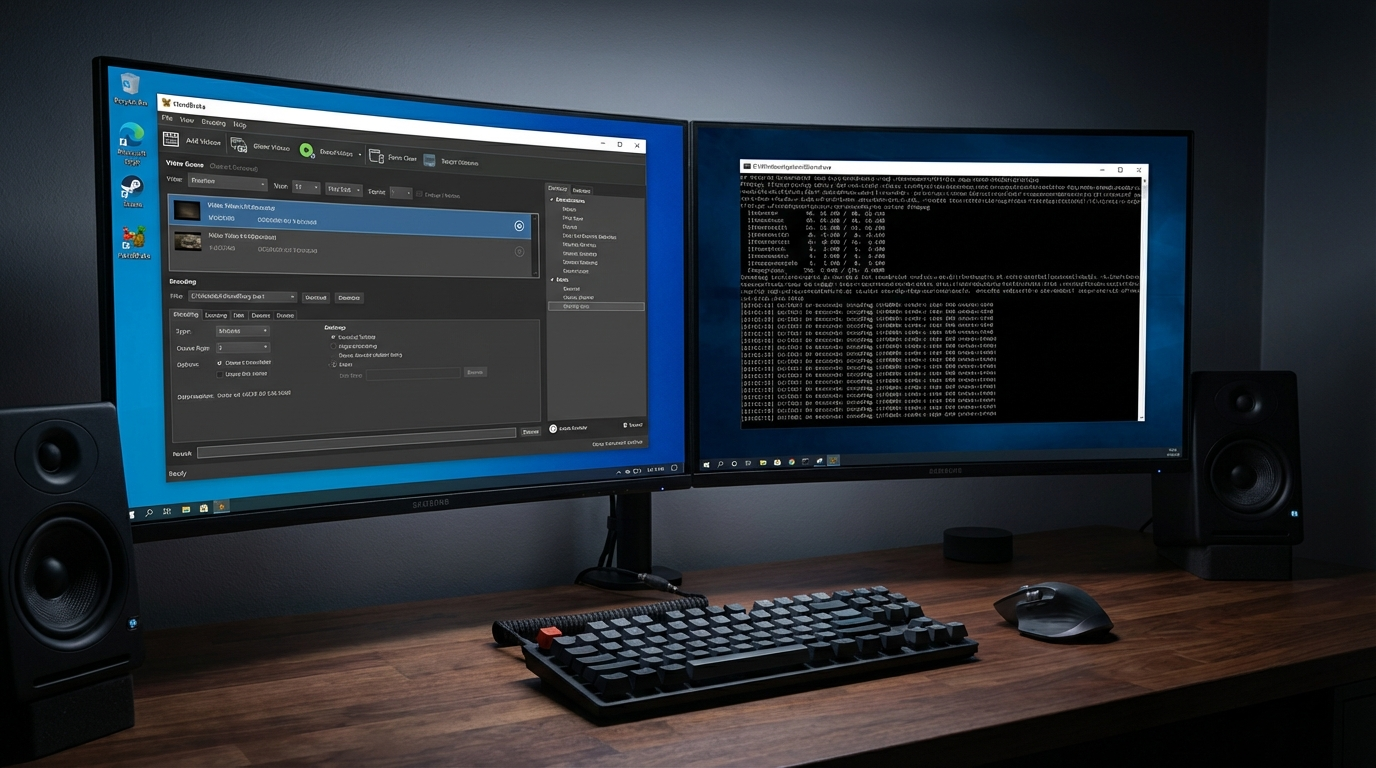
For beginners, HandBrake is the better starting point for video encoding, it offers a GUI, a preset-based workflow, and solid documentation. FFmpeg, on the other hand, is way more powerful and flexible, but it’s got a steep command-line learning curve that beginners often find pretty overwhelming. Let’s dive into a practical guide to help you understand both tools and pick the right one for what you need.
I get asked about video conversion all the time, usually something like: “Should I learn HandBrake or FFmpeg?” Honestly, they tackle similar problems but in totally different ways. HandBrake? That’s a specialized video transcoder with a graphical user interface (GUI). FFmpeg, though, is a full-blown multimedia framework that can pretty much do anything with audio and video, I mean, everything HandBrake does, and then some. So, let’s break this down practically.
HandBrake vs FFmpeg: What Each Tool Actually Is
HandBrake is a free, open-source video transcoder that comes with both a GUI (a desktop application) and a command-line interface. It was built specifically for video conversion and ripping, really focusing on making common conversion tasks easy for non-technical users. What’s interesting is that it actually uses FFmpeg libraries internally for a lot of its codec operations.
FFmpeg is a free, open-source multimedia framework that can decode, encode, transcode, mux, demux, stream, filter, and play virtually any audio or video format. It’s purely command-line on most installations (though there are GUIs built on top of it). FFmpeg is the backbone of countless video platforms, streaming services, and professional software, YouTube, Netflix, and Facebook all use FFmpeg in their processing pipelines.
According to BuiltWith data from 2024, FFmpeg is used by over 50,000 identified websites and apps as a media processing component, which honestly makes it one of the most widely deployed open-source projects globally.
Getting Started With HandBrake: Beginner’s Guide
HandBrake’s workflow for beginners is genuinely accessible:
- Install HandBrake from handbrake.fr (it’s free for Windows, Mac, and Linux)
- Open your source video, just drag and drop an MP4, MKV, AVI, or pretty much any other format
- Choose a preset, “Fast 1080p30” or “Very Fast 1080p30” will cover 90% of your use cases, trust me.
- Select output format, you’ll typically want MP4 or MKV containers
- Click “Start Encode”
That’s the core loop. HandBrake’s preset system is its biggest advantage for beginners, presets like “Discord,” “Gmail Large,” “Vimeo YouTube HQ 1080p60,” and “Web” actually handle all those technical codec decisions for you, automatically.
When HandBrake excels:
- Converting video specifically for platforms like YouTube, Vimeo, or Discord
- Compressing those huge video files without losing much quality
- Ripping DVDs and Blu-rays (a classic use case!)
- Batch converting multiple files at once
- Anyone who just prefers a visual interface over the command line, honestly
For pure compression use cases, check our guide on best free video compressors 2026 which covers HandBrake alongside other compression tools.
Getting Started With FFmpeg: Command Line Basics
FFmpeg requires no GUI, everything is done in Terminal (Mac/Linux) or Command Prompt/PowerShell (Windows). Here are the essential beginner commands:
Basic format conversion (any format to MP4):
ffmpeg -i input.mkv output.mp4Compress a video while maintaining quality (CRF method):
ffmpeg -i input.mp4 -vcodec libx264 -crf 23 output_compressed.mp4(Just remember: a lower CRF means better quality, but also a larger file. CRF 23 is the default, and you’ll usually find 18-24 to be the sweet spot.) (source: NIST cybersecurity guidelines)
Extract audio from video:
ffmpeg -i input.mp4 -vn -acodec copy output.aacResize video to 1080p:
ffmpeg -i input.mp4 -vf scale=1920:1080 output_1080p.mp4Trim a video (from 0:30 to 1:45): (source: peer-reviewed tech research)
ffmpeg -i input.mp4 -ss 00:00:30 -to 00:01:45 -c copy trimmed.mp4The learning curve is real, but honestly, these five commands will get you through most common video operations. Once you get a handle on FFmpeg’s basic syntax (like -i for input, codec flags, and the output file), tackling more complex stuff gets way easier.
HandBrake vs FFmpeg: Direct Feature Comparison
Here’s where each tool wins:
HandBrake advantages:
- A friendly GUI, so you don’t need the command line at all
- You can preview your video before it even starts encoding
- A fantastic preset system for all those common platforms
- It’s got built-in DVD/Blu-ray ripping capability (super handy!)
- Supports chapter markers
- A queue system for batch processing multiple files
- Generally better for straightforward video transcoding workflows
FFmpeg advantages:
- Supports pretty much every format and codec you can think of
- Gives you granular control over every single encoding parameter
- It’s awesome for audio processing right alongside video
- Strong streaming capabilities (think RTMP, HLS output)
- You can script and automate everything, which is a huge plus
- Converts image sequences to video
- Captures network streams
- It’s widely used in serious professional pipelines, which tells you something
For context on format-specific conversions, our guide on how to convert MKV to MP4 free covers scenarios where both tools are applicable.
Quality Comparison: Which Produces Better Output?
Both tools use the same underlying codec libraries (libx264, libx265, libvpx, etc.), so theoretically, their maximum quality is identical. The real difference is how easy it is to hit those optimal settings.
HandBrake’s CRF (Constant Rate Factor) quality slider defaults are well-tuned for most content. FFmpeg definitely gives you more control, but you’ll need to understand what CRF values, bitrate targets, and two-pass encoding actually mean.
For YouTube uploads specifically, HandBrake’s “YouTube HQ” preset produces excellent results without any technical knowledge. But for broadcast or streaming work where you really need precise bitrate control, FFmpeg’s -b:v (video bitrate) and -bufsize settings give you that exact, granular control.
In a 2023 analysis, encoder specialist Jan Ozer found that with equivalent settings, HandBrake and FFmpeg using the same codec (x264) churn out virtually identical output, so really, the difference boils down to how accessible those parameters are, not the fundamental quality itself.
Speed Comparison: HandBrake vs FFmpeg Encoding Speed
Encoding speed depends heavily on hardware acceleration settings. Luckily, both tools support GPU acceleration:
- HandBrake: Just enable Hardware Encoding in Preferences, it supports Nvidia NVENC, AMD VCE, and Apple VideoToolbox.
- FFmpeg: You’ll use the
-hwaccel cudaflag for Nvidia or-hwaccel videotoolboxfor Mac.
When you’re doing software (CPU) encoding, speed differences are pretty minimal if you’re using the same codec. But with GPU acceleration switched on, both tools can hit 5-10x faster-than-realtime encoding on modern hardware. That’s fast! For more information, check out download videos for free.
Which Should You Learn First?
Start with HandBrake if:
- You need to convert videos right away and don’t have much of a tech background
- Your main goal is personal video conversion for streaming platforms
- You just prefer visual interfaces over command lines (who doesn’t sometimes?)
Start with FFmpeg if:
- You’re keen on learning video processing as a skill, not just using a tool
- You need to automate complex conversion workflows
- You’re a developer integrating video processing into an app or a professional pipeline
- You’ve got to deal with unusual formats or live streams
Many experienced video professionals actually use both, HandBrake for those quick batch conversions, and FFmpeg for scripted automation and tackling those tricky edge cases. They’re complementary tools, not competitors. For MP4 to MP3 audio extraction specifically, see our guide on best MP4 to MP3 converters 2026.
Frequently Asked Questions: HandBrake vs FFmpeg for Beginners
Is HandBrake just FFmpeg with a GUI?
Not exactly. HandBrake uses some FFmpeg libraries internally for codec support, but it’s a completely separate application with its own encoding engine, a strong preset system, and unique features like DVD ripping that definitely go beyond just wrapping FFmpeg. Think of them as related but distinct tools.
Which is better for compressing large video files?
Both are excellent for compression. HandBrake’s Quality slider (CRF) is easier for beginners to use correctly. FFmpeg gives you more precise control, but you’ll need to really understand those codec parameters. For simple compression, HandBrake’s “Very Fast 1080p30” preset is hard to beat for ease of use.
Can FFmpeg do everything HandBrake can do?
Yes, and more. Every single one of HandBrake’s GUI operations has an FFmpeg equivalent. However, HandBrake’s DVD/Blu-ray ripping capability and its visual preview features are just way more accessible when you’re using HandBrake itself.
Is FFmpeg free to use?
Yes. FFmpeg is free, open-source software distributed under the LGPL/GPL license. It’s available for Windows, Mac, and Linux. Commercial use is permitted with appropriate license compliance.
What’s the best HandBrake preset for YouTube uploads?
HandBrake’s “Vimeo YouTube HQ 1080p60” preset produces excellent YouTube uploads. For 4K content, just use the “H.265 MKV 2160p60” preset and upload the MKV, YouTube actually handles that really well.
How do I install FFmpeg on Windows?
Download the Windows build from ffmpeg.org → extract the zip → add the bin folder to your system PATH environment variable → then verify with ffmpeg -version in Command Prompt. The installation takes about 5 minutes.
This article contains no affiliate links. All tools mentioned are free and open-source.
Leave a Reply